
Quick Answer
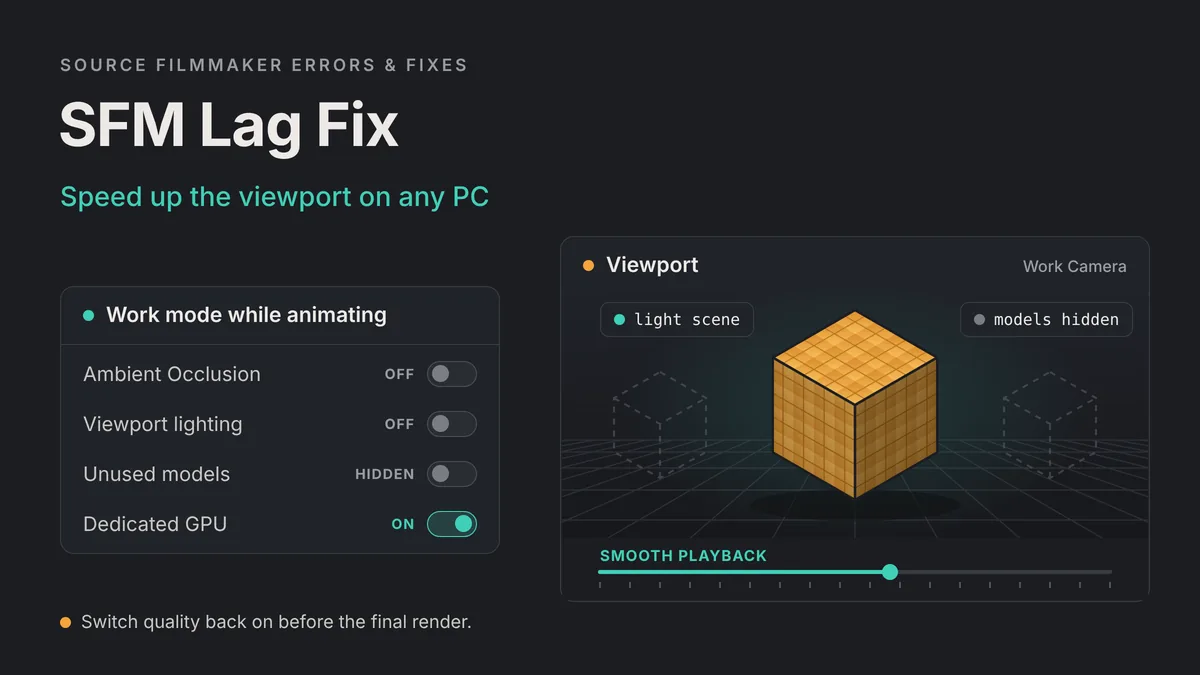
SFM lag usually comes from the viewport doing more work than your PC can handle. Every preview frame includes your lights, shadows, models, particles and ambient occlusion on an old branch of the Source engine. The fastest fix is to work light and render heavy: turn off expensive features while you animate, hide what you do not need, and restore everything for export.
Turn off ambient occlusion
Right-click the viewport, open the render settings and untick Ambient Occlusion while you animate.
Lighten the scene
Disable viewport lighting, hide unused models and hide heavy particles until you need them.
Check your launch options
Remove a high -sfm_resolution value while you work, and keep it for the final render only.
Use the right GPU
Update drivers and make sure Windows runs sfm.exe on your dedicated graphics card.
Why Source Filmmaker Lags
SFM is a tool built on a game engine, not a modern 3D suite. Valve’s wiki says the original Source Filmmaker runs on the Alien Swarm branch of Source. That engine was designed for real-time games, and SFM layers film tools, high-quality lighting and huge sessions on top of it. So the same PC that runs Team Fortress 2 smoothly can still stutter in SFM.
Lag is rarely one single problem. It is usually several costs stacked together. Knowing which ones apply to your scene tells you where to start.
An Old Engine With Tight Memory Limits
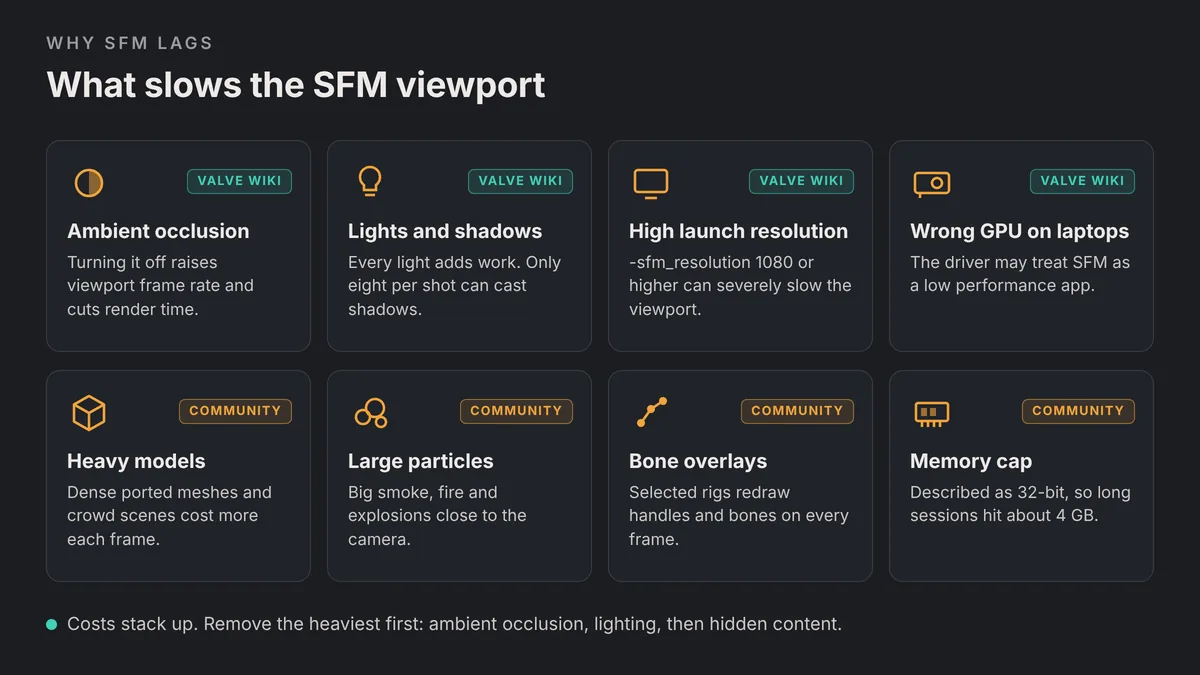
Community users widely describe SFM as a 32-bit program, which would cap the memory it can use at around 4 GB, whatever your PC has installed. Users on the Steam forums report that SFM becomes unstable as a large session nears that limit. One forum reply adds that SFM is already compiled as large address aware, so third-party patches that promise more memory do not help.
In practice, this means more RAM in your PC will not make one huge session faster. Keeping each session lean matters more than raw hardware.
Ambient Occlusion
Ambient occlusion adds soft contact shadows where surfaces meet. It looks great, and it is the most common cause of a slow viewport. Valve’s SFM common issues page says turning it off has “the benefit of increasing the framerate of the viewports, as well as decreasing rendering times.” Community users on Steam regularly name it the biggest resource hog in SFM.
Lights and Shadows
Every light in the scene adds work, and shadowed lights add the most. Valve’s lighting documentation says only eight lights in a shot can cast shadows, so big lighting setups also hit a hard cap. Shadow quality adds more cost. A higher shadow map resolution, set with a launch option, uses more video memory.
High-Poly Models and Many Characters
Each model in the session has to be drawn and posed every frame. Ported models with dense meshes, many bodygroups or large textures cost far more than stock TF2 characters. A crowd scene with ten detailed ports can bring a mid-range GPU to a crawl.
Particles, Bones and Overlays
Large smoke, fire and explosion systems fill the screen with transparent sprites. Those are expensive to draw, especially when the camera sits close to them. Community users on the Steam forums also point to the bone and manipulator overlays. They describe them as poorly optimized, so a selected rig with many visible controls can slow the viewport even in a simple scene.
Progressive Refinement and Render Effects
Progressive refinement is the feature that builds depth of field, motion blur, soft shadows and ambient occlusion over many samples. Valve’s progressive refinement page says these effects are only visible when the playback is paused, because the process is not real time. Community users disagree on whether turning it off speeds up playback. Most agree that ambient occlusion and lighting matter far more.
Viewport Settings to Change First
These changes cost nothing and are fully reversible. Make them at the start of an animation session, then undo them before you render.
| Setting | Where to find it | Source | When to turn it back on |
|---|---|---|---|
| Ambient Occlusion | Right-click the viewport, open the render settings, untick Ambient Occlusion | Valve wiki | Before the final render |
| Viewport lighting | Right-click the viewport and untick the lighting option | Community tip | When you start lighting the scene |
| Extra shadowed lights | Disable shadows on fill and minor lights | Community tip | Only for lights that need them |
| Unused models | Hide them with the eye icon in the Animation Set Editor | Community tip | When the shot needs them |
| Heavy particles | Hide the particle system with the eye icon | Community tip | For playback checks and the render |
| Selected controls | Deselect everything, or switch to the Clip Editor, before playback | Community tip | When you return to posing |
Disable Ambient Occlusion While You Animate
This is the single biggest win for most scenes. Valve’s instructions are to right-click the viewport, open the rendering settings and untick Ambient Occlusion. The menu label reads Render Settings on many versions. Community users on Steam have reported viewports jumping from a slideshow to usable frame rates after this one change.
Remember to switch it back on before you export. Leaving it on gives a more realistic look in the finished movie, which is why it is on by default. Our guide to the best SFM render settings covers how ambient occlusion fits into a final render.
Turn Off Lighting in Work Mode
Community users suggest right-clicking the viewport and turning off lighting until you are ready to light the scene. The preview becomes flat but much lighter. Reports on how much it helps vary from a small gain to a large one, so test it in your own session.
If a fully unlit viewport is too hard to read, try a middle step. Keep viewport lighting on, but disable shadows on fill lights and any light that does not need them. Our SFM lighting guide explains which lights benefit from shadows and how the eight-shadow limit works.
Hide Models and Particles You Are Not Animating
Hidden objects are not drawn, so they cost almost nothing in the viewport. Use the eye icon next to an animation set in the Animation Set Editor to hide a model or effect. Bring it back when you need to check timing or framing.
This works well for crowd scenes and big effects. Animate the hero character with background extras hidden, then unhide them for a final pass. For effect-heavy shots, our guide to SFM particles and effects shows how particle systems are built and controlled.
Deselect Controls Before Playback
A selected rig draws handles and bone overlays on every frame. Before you press play, deselect all controls. Community users say the easiest way is to switch the timeline to the Clip Editor, where controls cannot be selected. Valve’s viewport page confirms that controls are only selectable in the Motion Editor and Graph Editor modes.
Lighter rigs help too. Our SFM rigging guide covers rig scripts that replace dozens of loose bones with a few clean handles.
What About Anti-Aliasing, Depth of Field and Motion Blur?
These are render-quality settings, not viewport settings. SFM builds them through progressive refinement samples, which mainly affect paused frames and the export. Community users report that lowering them makes little difference to live playback. Lower them to speed up test renders, not to fix a laggy viewport.
Work in Smaller Sessions and Shots
Long sessions are a common source of SFM lag and crashes. Every shot, model and animation layer stays loaded in the same session, and the memory limit does not grow with your project.
- Split long films. Community users advise keeping each session to a few minutes of footage. Many suggest staying under five minutes.
- One scene per session. Build each location or sequence in its own session file.
- Export and stitch. Render each session to an image sequence, then join the clips in a video editor.
- Clean up unused shots. Delete test shots, spare cameras and models you replaced.
- Save often. Smaller sessions also load faster and lose less work if SFM crashes.
Joining the exports is quick. Our guide on how to render SFM to MP4 shows how to turn image sequences into a finished video with FFmpeg.
Launch Options That Affect SFM Lag
Some launch options make SFM heavier, not lighter. You set them in Steam: right-click Source Filmmaker, open Properties and use the launch options field. Valve’s rendering at 1080p page gives this switch for Full HD output:
-sfm_resolution 1080 -w 1920 -h 1080The -sfm_resolution value raises the maximum render resolution, while -w and -h set the width and height. Valve warns that this “may severely degrade viewport performance” and suggests switching to it only for final output. Its 4K page gives the same warning for higher values.
| Launch option | What Valve says it does | Lag advice |
|---|---|---|
-sfm_resolution | Changes the maximum render resolution | Remove it while animating, add it back for the final export |
-w and -h | Set the engine width and height | Use them only with -sfm_resolution for final renders |
-sfm_shadowmapres | Sets shadow map size; default 2048, valid values 1024 to 8192 in powers of two | Keep the default while you work; raise it only for final renders |
Two warnings from Valve are worth knowing. SFM may crash if you load a session whose export resolution is higher than the current launch option. It may also crash when you export an image after changing the export resolution, unless you save and reload the session first. Save before you switch.
Be wary of long lists of “performance” launch options copied from game guides. Many are general Source engine switches, and Valve does not document any of them as an SFM speed fix.
GPU, Driver and Windows Power Settings
A surprising amount of SFM lag has nothing to do with the scene. It comes from Windows, the driver or a laptop choosing the wrong graphics chip.
Update Your Graphics Drivers
Install the latest driver from NVIDIA, AMD or Intel, then restart your PC. Drivers are the first thing to rule out when every session lags, rather than one heavy scene. If lag or glitches began right after a driver update, a clean reinstall of the driver is worth trying.
Set Windows Graphics to High Performance
On Windows 11, open Settings, then System, Display and Graphics. Add sfm.exe as a desktop app from the SourceFilmmaker\game folder. Click Options, choose High performance and save. Windows 10 has a similar Graphics settings page under Display.
Plug laptops into the charger while you work. On battery, Windows and the GPU driver can limit performance to save power, which can turn a smooth viewport into a slow one.
NVIDIA and AMD Control Panel Settings
NVIDIA’s control panel lets you set options per program. Open Manage 3D settings, then the Program Settings tab, and add sfm.exe. NVIDIA’s own reference lists a Power management mode called Prefer maximum performance, and, on laptops with switchable graphics, a Preferred graphics processor option for the high-performance NVIDIA processor. On an AMD system, look for the equivalent per-app graphics setting in AMD’s own software.
Laptop Lag: Make SFM Use the Dedicated GPU
Laptops cause more SFM lag reports than any other hardware. Valve’s common issues page says laptops with embedded graphics chips or small screens are unlikely to run SFM well. It adds a useful hint for gaming laptops. If yours has a strong graphics chip, check the driver settings, because the driver may have categorized SFM as a “low performance” application.
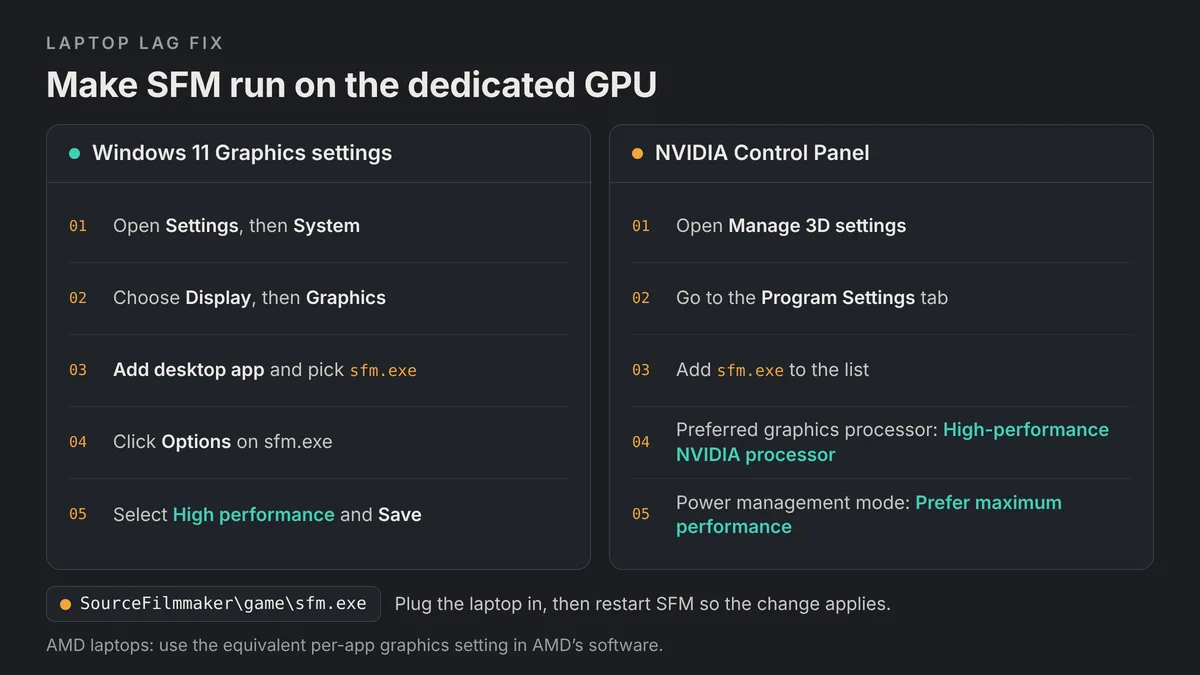
When that happens, the laptop runs SFM on its integrated graphics, even though a dedicated GPU is sitting idle. Set sfm.exe to High performance in Windows Graphics settings, and choose the dedicated GPU in the NVIDIA or AMD panel as well. Then restart SFM so the change applies.
Valve also notes a sign of hardware that falls short. A white line across the viewport, or a washed-out look, means the computer does not meet SFM’s minimum requirements. Our Source Filmmaker install guide lists the official system requirements and the Windows settings that help on Windows 10 and 11.
Clean Up Workshop Content and Mod Folders
A bloated content library does not slow every frame, but it can slow startup, model browsing and search. It can also trigger errors. A community answer on the Steam forums links a “CUtlRBTree overflow” error to very large numbers of Workshop subscriptions, described as over a thousand or so.
- Back up, then unsubscribe. Copy items you want to keep, then unsubscribe from Workshop content you no longer use.
- Disable unused folders. Untick mod folders you do not need in Edit Search Paths for the current project.
- Keep usermod tidy. Community users advise against dumping everything into usermod, because a separate folder per pack is easier to switch off.
- Use fewer material overrides. The same community answer notes heavy use of material overrides can contribute to that error.
Our guide to importing SFM models from the Steam Workshop explains where Workshop items are stored and how search paths decide what SFM loads.
Render Performance vs Viewport Performance
A smooth viewport and a fast render are two different goals. The viewport is a real-time preview. The render runs each frame through progressive refinement, which takes many samples for depth of field, motion blur, soft shadows and ambient occlusion.
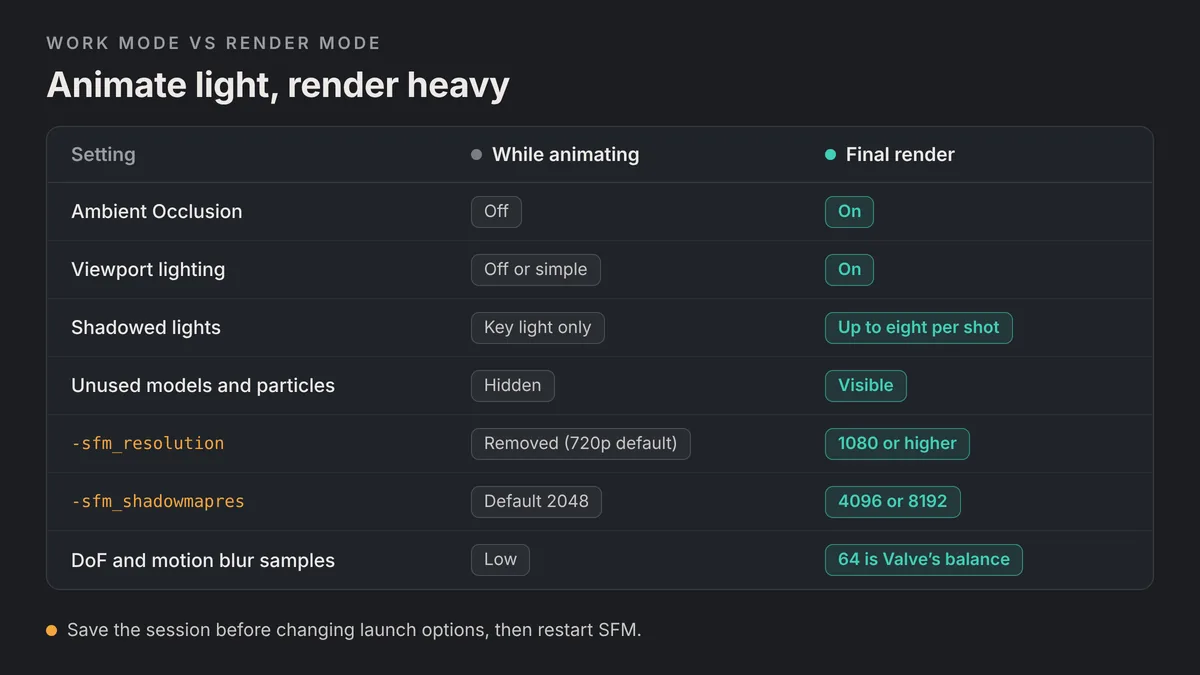
Valve’s progressive refinement page explains the cost. Sampling runs in parallel up to 64 samples, and higher counts run in sequence, roughly doubling the time per step. Valve suggests 64 as a good balance. If a render struggles, Valve suggests disabling motion blur and ambient occlusion and setting the scene camera’s aperture to 0.
| Setting | Affects the viewport? | Affects render time? |
|---|---|---|
| Ambient occlusion | Yes, heavily | Yes |
| Viewport lighting and shadowed lights | Yes | Yes, for shadowed lights |
| Depth of field and motion blur samples | Mainly paused frames | Yes, heavily at high counts |
| -sfm_resolution | Yes, Valve warns it can severely slow it | Yes, higher resolutions take longer |
| Hidden models and particles | Yes, hidden objects are not drawn | Only if still hidden at export |
So lower settings while you work, and raise them only for the export. Test a few frames before you queue a long render, and export an image sequence so a crash does not cost you the whole job.
SFM Lag Troubleshooting Flowchart
Use this order when you do not know where the lag comes from. Each question rules out one cause before you move to the next.
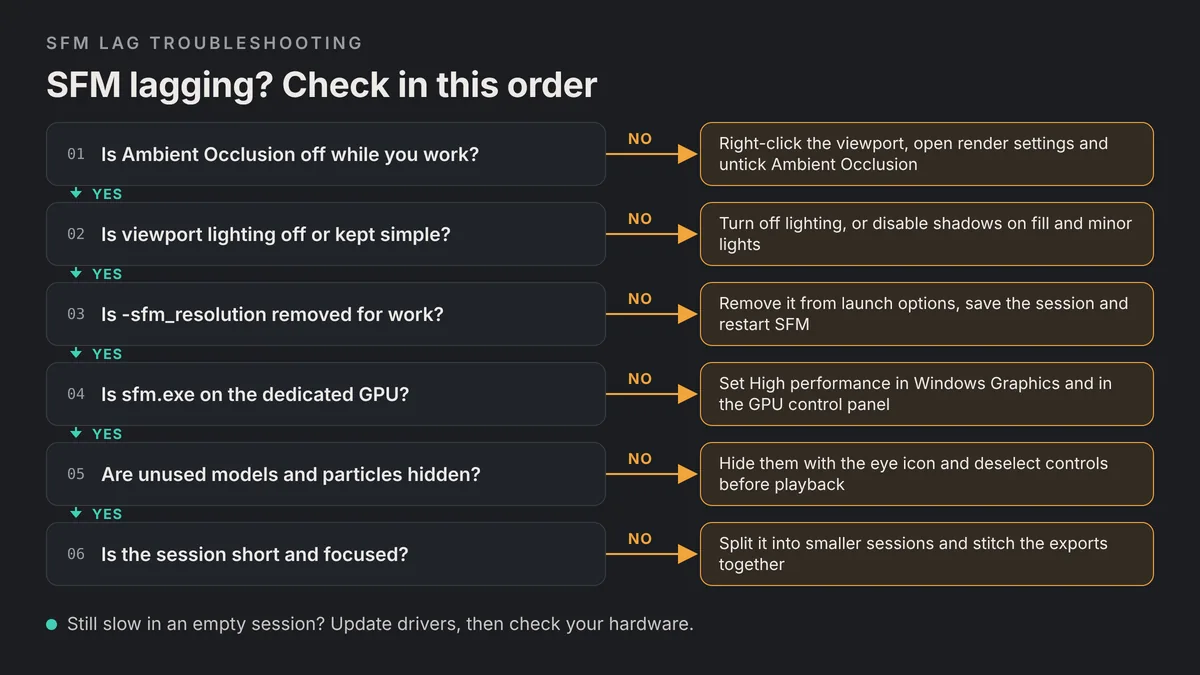
If every answer is yes and SFM still lags, test a fresh session on a small stock map with one character. If that runs smoothly, the cause is your project. Bring content back in stages until the slowdown returns. If even the empty session lags, focus on drivers, GPU selection and the hardware itself.
Habits That Keep SFM Fast
Start sessions light
Begin each animation session with ambient occlusion off and only the models you need visible.
Keep sessions short
Split long films into several sessions, then join the exports in a video editor.
Light last
Block out animation with simple lighting, then add shadowed lights near the end.
Raise quality at export
Add -sfm_resolution and higher shadow map sizes only for the final render.
Prune your library
Unsubscribe from old Workshop items and disable mod folders you are not using.
SFM Lag FAQs
Why is SFM so laggy even on a good PC?
SFM runs on an old branch of the Source engine and previews lights, shadows, ambient occlusion and every model in real time. Community users also describe it as a 32-bit program with a memory cap, so a strong PC cannot fully speed up a heavy session.
What is the fastest way to fix SFM lag?
Turn off ambient occlusion. Right-click the viewport, open the render settings and untick Ambient Occlusion. Valve says this increases viewport frame rates and shortens render times. Switch it back on before your final render.
Does turning off progressive refinement reduce SFM lag?
Community users disagree, and many report little or no change in live playback. Progressive refinement mainly affects paused frames and renders. Ambient occlusion, lighting and hidden models make a bigger difference to the viewport.
Does -sfm_resolution make SFM slower?
It can. Valve warns that rendering at 1080p or higher with -sfm_resolution may severely degrade viewport performance. Remove the launch option while you animate and add it back only for the final export.
How do I make SFM use my dedicated GPU on a laptop?
In Windows 11, open Settings, then System, Display and Graphics. Add sfm.exe, click Options and choose High performance. Also set the dedicated GPU for sfm.exe in the NVIDIA or AMD control panel, then restart SFM.
Will more RAM fix SFM lag?
Usually not by itself. Community users describe SFM as a 32-bit program that can only use about 4 GB of memory. Splitting long projects into smaller sessions and hiding unused content helps more than adding RAM.
Why does SFM lag more with lights in the scene?
Every light adds work, and lights that cast shadows add the most. Valve allows only eight shadowed lights per shot. Disable shadows on minor lights, or turn off viewport lighting while you animate.
Is a slow viewport the same as a slow render?
No. The viewport is a real-time preview, while the render adds progressive refinement samples for depth of field, motion blur and ambient occlusion. Lower viewport settings while you work, and raise render quality only for the export.
3 thoughts on “SFM Lag Fix: How to Speed Up Source Filmmaker on Any PC”