
Quick Answer
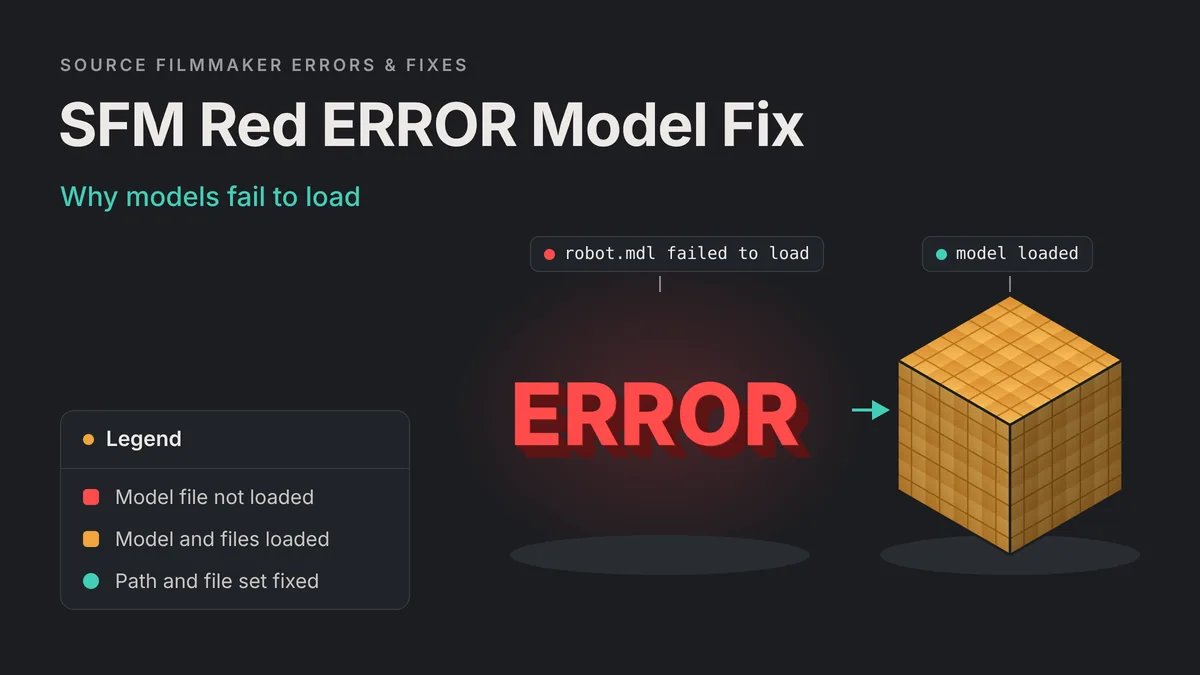
An SFM error model is the big red ERROR shape Source Filmmaker draws when it cannot load a model. The .mdl file may be missing or in the wrong folder, a companion file such as the .vvd or .vtx may be gone, or the model was compiled in a way SFM cannot read. Start with the console, which usually names the failed file.
Read the console
Open Windows, then Console, load the model again and note the path it reports.
Check the file set
Confirm the .mdl, .vvd and .vtx files sit together in the same folder.
Check the path
Make sure that folder is inside an enabled mod folder and matches the path in the model.
Reinstall or recompile
Resubscribe to Workshop items, or recompile broken ports with SFM’s own studiomdl.
What the Red ERROR Model Means
The ERROR model is Source’s stand-in for a model it could not load. Valve’s missing content page describes it plainly: missing models show up as flashing red 3D text saying “Error.” SFM uses the same placeholder in the viewport and in the model browser preview.
The placeholder tells you something useful. SFM knew which model you asked for, because it drew the stand-in in its place. What failed was the step after that: finding and reading the model files. So the problem is almost always on disk, not in your scene.
ERROR Model vs Checkerboard vs Invisible Model
Three failures get mixed up often. Each one points to a different part of the model, so name yours before you change anything.
| What you see | What failed | Where to look first |
|---|---|---|
| Red ERROR model | The model file could not be loaded | The .mdl path, its companion files and the search paths |
| Purple and black checkerboard | The model loaded, but a material did not | The materials folder, the VMT and the VTF |
| Invisible model, or only bones | Community users link this to vertex data that failed to load | The .vvd file and the path inside the .mdl |
If your model loads but looks purple and black, this guide is the wrong fix. The model is fine, and only its materials are missing. Our Crowbar decompile and recompile tutorial covers VMT and VTF paths for that case.
Why SFM Models Fail to Load
Most SFM error model problems fall into six groups. The table gives the short version. The sections below explain each one.
| Cause | Typical sign | Fix |
|---|---|---|
| .mdl missing or in the wrong folder | The console says it cannot find the model | Put the model folder inside an enabled mod folder |
| Companion files missing | The .mdl exists, but the .vvd or .vtx does not | Copy the full model folder from the original download |
| Files moved after compiling | Failed load of .vvd data, or a checksum message | Move the files back, or change $modelname and recompile |
| Folder not mounted | Files are on disk, but SFM never sees them | Enable the folder in Edit Search Paths, then restart |
| Built for another engine branch | Ports from CS:GO or Source 2 games fail | Rebuild the model and compile it with SFM’s studiomdl |
| Bad compile | The compile log shows errors, or files are missing | Fix the QC, then compile again with SFM as the target |
A Missing or Misplaced .mdl File
SFM does not search your whole drive. It only reads the models folder of each mod folder it has loaded, such as game\usermod\models. A model that sits in Downloads, on the desktop or in a stray subfolder will never load. Community users also see doubled folders such as models\models after unzipping a download. One extra level is enough to break the path.
Missing Companion Files: .vvd, .vtx and .phy
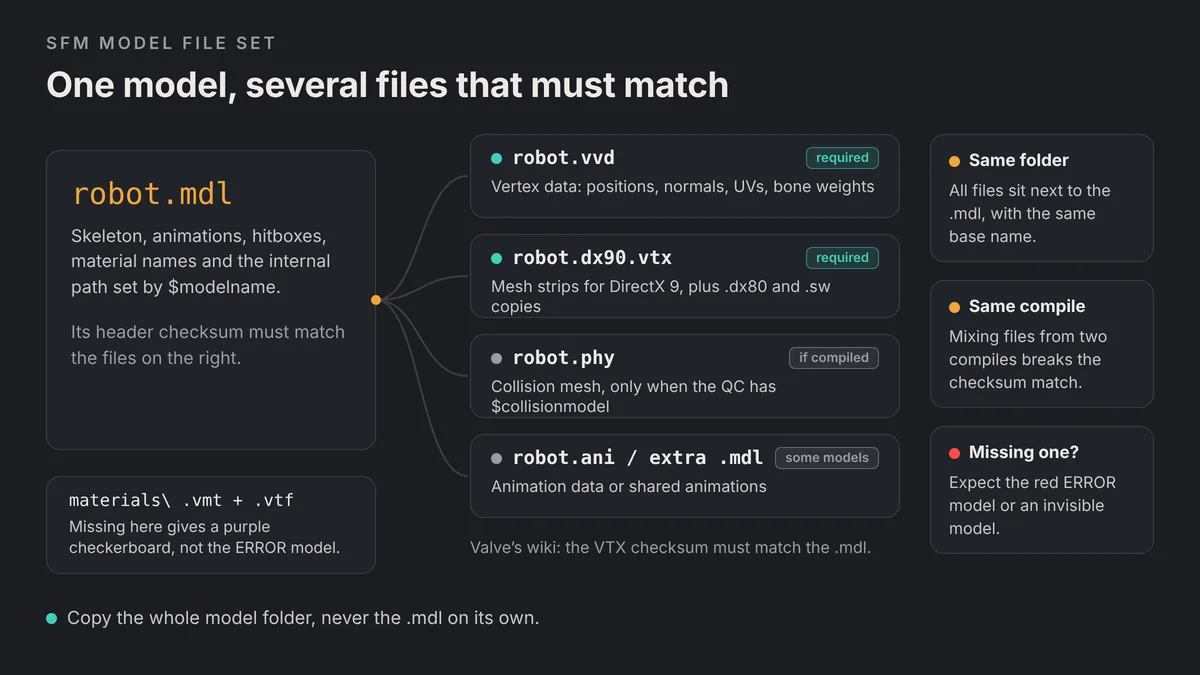
A compiled model is never a single file. Valve’s StudioMDL documentation lists what the compiler writes. The .vvd holds hardware-agnostic vertex data, including the UV map. The .vtx files hold mesh data optimized for different DirectX levels. The .phy holds the collision mesh, and the compiler leaves it out if no $collisionmodel is defined.
| File | What it holds | Needed? |
|---|---|---|
| .mdl | Skeleton, animations, hitboxes, material names and LOD data | Always |
| .vvd | Vertex positions, normals, UVs and bone weights | Always |
| .dx90.vtx | Mesh strips for DirectX 9 and up | Always |
| .dx80.vtx, .sw.vtx | Copies for older DirectX levels | Often included; keep them if present |
| .phy | Collision mesh | Only if the QC defines one |
| .ani or extra .mdl | Animation data or shared animations | Only on some models |
Valve’s MDL page adds a detail that matters here. The .mdl header carries a checksum, and it has to match the checksum in the .phy and .vtx files. Files from two different compiles do not mix, even when their names match. Always copy the whole model folder together.
Files Moved After Compiling
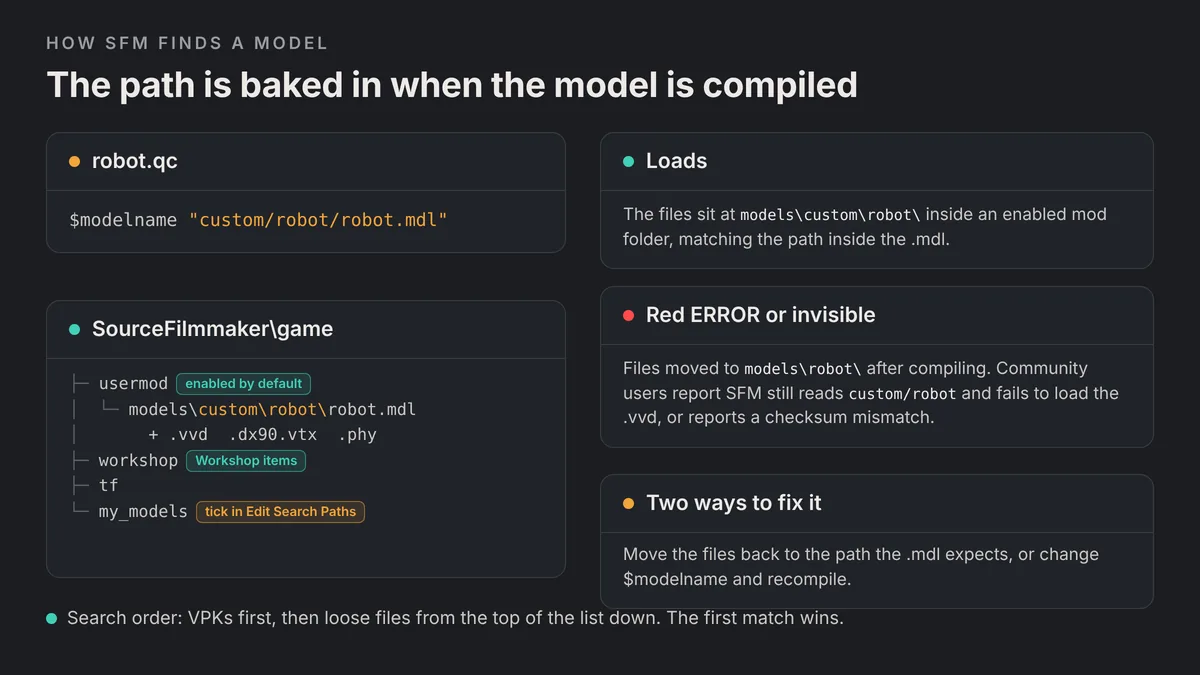
Every compiled model stores its own path. The QC command $modelname sets it, and Valve notes that the path is always relative to the models folder of the mod. A model compiled as custom/robot/robot.mdl expects to live at models\custom\robot\.
This catches many people who tidy their folders. Community experts explain that SFM reads that internal path and loads the companion files from it. If you move the files elsewhere, SFM can report “Failed load of .VVD data” or a checksum mismatch, and the model shows as ERROR or goes invisible. The cure is to move the files back, or to change $modelname and recompile.
Models Compiled for a Different Engine Branch
Source is not one engine but a family of branches. Valve’s wiki says SFM runs on the Alien Swarm branch of Source. Games on other branches build models with their own compiler. Community experts note that each version of studiomdl is customized for the game it compiles for. A model built for CS:GO or another branch may not load cleanly in SFM.
Source 2 models are a different case. Valve describes VMDL_C as the compiled, game-side model file of Source 2. It is not an .mdl at all, so the original SFM cannot read it. Source 2 Filmmaker is a separate tool that ships with Source 2 game tools. To use a Source 2 asset in the original SFM, it has to be rebuilt as a Source 1 model and compiled with SFM’s studiomdl.
A Bad or Incomplete Compile
A model can also fail because the compile itself went wrong. A missing quote or brace in the QC can stop the build. Community users report that studiomdl refuses models with too many materials, and that the limit is 32 materials for official compilers. Read the compile log to the end. If it stopped on an error, some output files may never have been written.
Workshop Downloads That Did Not Finish
Workshop models fail when the download is partial or the sync is interrupted. SFM syncs subscribed items into game\workshop when it starts. If SFM was open during the download, or Steam paused it, the item can arrive incomplete. Our guide to importing SFM models from the Steam Workshop covers how syncing works.
How SFM Search Paths and Mounting Work
Every fix for an SFM error model comes back to one question: can SFM see the file? The answer depends on search paths.
Source Filmmaker keeps its content in mod folders inside SourceFilmmaker\game, such as usermod, workshop and tf. Each mod folder has a gameinfo.txt file. Its SearchPaths section lists the places the engine looks for content. Valve’s gameinfo.txt documentation explains the order:
- VPK archives come first. Files packed into VPKs win over loose files with the same path.
- Loose files come next. The engine reads them from the top of the search path list down.
- The first match wins. The engine stops searching as soon as it finds the file.
That last rule explains an odd symptom. Two models with the same internal path can clash. A community fix for one checksum error was to remove a duplicate model that claimed the same path. If a model loads the wrong mesh or fails a checksum check, search for duplicates.
Mounting Folders With the SDK Launcher
You choose which mod folders load from Steam, not from inside SFM. Community guides describe the route. Right-click Source Filmmaker in your library and choose Launch SDK. Then pick Edit Search Paths for the selected mod. Tick each folder you want SFM to load, then restart SFM.
Usermod is enabled by default, which makes it the safest place for manual downloads. A custom folder such as my_models only works once it is ticked in that list. Our Source Filmmaker install guide shows where the game folder sits on a default install.
How to Fix the SFM Error Model Step by Step
Work through these steps in order. Each one rules out a cause, so you never rebuild a model that only needed moving.
Step 1: Check the Console for the Exact Error
The console is the fastest route to the answer. Open it from Windows, then Console, at the top of SFM. Load the model again, or select it in the model browser without spawning it. Then read the newest lines.
| Console message (community reports) | What it usually means |
|---|---|
| Cannot find or cannot load the .mdl | The model is not in a loaded models folder |
| Failed load of .VVD data for the model | The .vvd is missing, or files sit away from the path in the .mdl |
| A checksum that should match another value | Files from different compiles, or another model with the same path |
Write down the full path the console prints. It is the path SFM expects, and every later step compares the real folder against it.
Step 2: Verify the Full File Set
Open the folder that holds the .mdl. Check that the .vvd and at least the .dx90.vtx sit beside it, with the same base name. If the model had a .phy or .ani file in the original download, those need to be there too.
If anything is missing, copy the whole model folder again from the original download. Do not mix files from two versions of the same model. Their checksums will not match.
Step 3: Check the Folder Path Against the Model’s Internal Path
Compare the path from the console with the real folder on disk, one folder at a time. The model must sit under models inside a loaded mod folder. Watch for doubled folders, extra parent folders and folder names that were renamed after compiling.
If you cannot tell what path the model expects, open the .mdl in Crowbar. Crowbar can show information about a compiled model, including its MDL version, and a decompile writes the QC with its $modelname line.
Step 4: Confirm the Folder Is Mounted
If the files are in a custom folder, open Edit Search Paths from the SDK launcher. Tick the folder and restart SFM. For a quick test, copy the model and materials folders into game\usermod instead. If the model loads there, the problem was mounting, not the files.
Step 5: Reinstall the Workshop Item
For Workshop models, rule out a broken download before you edit anything. Close SFM, open Steam’s Downloads page and wait for the queue to clear. Then relaunch SFM so it can sync the item.
If the ERROR model stays, reinstall the item. Experienced community members advise this order: unsubscribe, launch SFM and let it delete the item, then subscribe again. If a prompt asks about replacing materials, some advise choosing Yes To All. Skipping files can leave the model broken. Read the item description too. Many models depend on separate packs.
Step 6: Recompile With studiomdl or Crowbar Targeting SFM
If the model was moved, ported badly or built for another branch, recompile it. Decompile it with Crowbar, fix the QC, then compile with SFM’s own studiomdl. Community experts warn that a model compiled with another game’s studiomdl may not work correctly in SFM.
In Crowbar, open Set Up Games and pick the Source Filmmaker entry. Point it at game\usermod\gameinfo.txt and at studiomdl.exe in SourceFilmmaker\game\bin. Then choose it as the game that has the model compiler. A clean QC for SFM looks like this:
$modelname   "custom/robot/robot.mdl"
$body        "body" "robot_ref.smd"
$cdmaterials "models/custom/robot/"
$sequence    "idle" "robot_ref.smd"
You can also run studiomdl from a command prompt. Valve’s documentation gives the syntax as options first, then the QC file, and lists -game for setting the game folder:
"...\SourceFilmmaker\game\bin\studiomdl.exe" -game "...\SourceFilmmaker\game\usermod" "C:\work\robot\robot.qc"Replace the dots with your own Steam library path. The compiled files land under usermod\models, in the folder that $modelname names. Our Blender to SFM porting guide walks through the QC and compiling into usermod in more detail.
Step 7: Verify SFM’s Tool Files
If every model shows ERROR, including stock TF2 models, the problem is wider than one download. Steam can check SFM’s own files. Right-click Source Filmmaker in your library, open Properties, then Installed Files, and choose the option to verify integrity. Steam replaces any core files that are damaged or missing.
Also check that usermod and tf are still ticked in Edit Search Paths. If the model browser itself shows nothing, community users report that deleting ingamedialogconfig.vdf from game\platform\config, with SFM closed, can reset it.
Step 8: Restart SFM and Test in a Clean Session
SFM reads model folders when it starts. After any change, close SFM fully and open it again. Load the model in a new, empty session and check the console before you start animating.
SFM Error Model Troubleshooting Flowchart
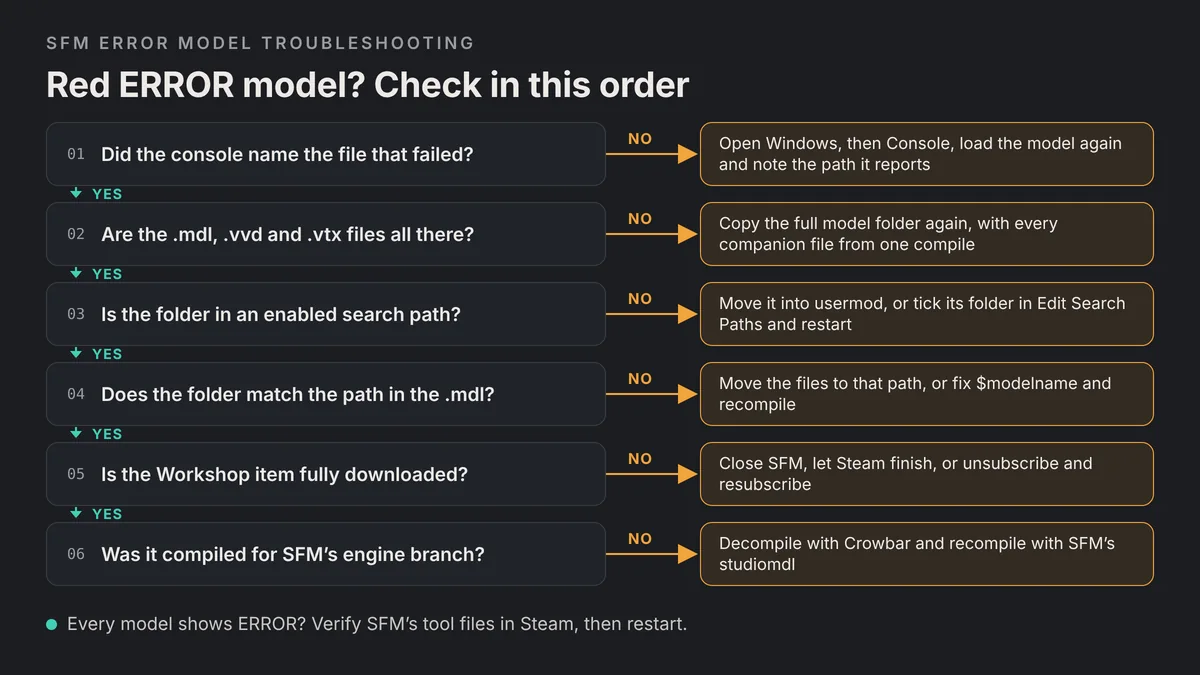
Use this order when you do not know where to start. Each question rules out one cause before you move on.
If the model browser shows nothing at all, check its filters before anything else. Community users have traced “missing” models to hidden text typed into the browser’s filter box. Clear the box and select the top-level MDL files entry to show everything again.
Preventing ERROR Models in Future Projects
A few habits stop most SFM error model problems before they start. They matter most when you port or share models.
Keep the folder whole
Copy and share the full model folder, never the .mdl on its own.
Compile to the final path
Set $modelname to the folder where the model will live, then never move it.
Use SFM’s compiler
Point Crowbar at SFM’s studiomdl.exe for every model meant for SFM.
Use unique paths
Give each custom model its own folder, so two models never claim the same path.
Test in a clean session
Load each new model in an empty session and read the console first.
Once the model loads, you can build a rig for it with our SFM rigging guide. Before a long export, test a short clip with our best SFM render settings, since a missing model will show in the final frames too.
SFM Error Model FAQs
What does the red ERROR model mean in SFM?
It means Source Filmmaker could not load the model file. The .mdl may be missing, in the wrong folder, or missing companion files such as the .vvd or .vtx. Check the console to see which file failed.
Why is my SFM model invisible instead of showing ERROR?
Community users link invisible models to vertex data that failed to load. This often happens when the .vvd is missing or the files were moved away from the path stored in the .mdl. The console usually shows a failed .vvd load or a checksum message.
Can SFM load CS:GO or Source 2 models?
Not reliably as they are. SFM runs on an older Source branch, and models built with another branch’s compiler may fail. Source 2 models use a different format that SFM cannot read. Rebuild them and compile with SFM’s studiomdl.
Where should I put model files for SFM?
Put them in the models folder of a mod folder SFM loads, such as game\usermod\models. Keep the subfolders exactly as the download had them, and put the materials folder in usermod as well.
How do I fix ERROR models from the Steam Workshop?
Close SFM and let Steam finish downloading, then relaunch. If that fails, unsubscribe, launch SFM so it deletes the item, then subscribe again. Check the item description for required packs.
Do I need to recompile a model to fix the ERROR model?
Not always. Missing files, wrong folders and disabled search paths are fixed by moving or copying files. Recompile only when the files were moved after compiling or the model was built for another engine branch.
Why do all my models show ERROR in SFM?
Check that usermod and tf are still enabled in Edit Search Paths. Then verify SFM’s files from its Properties in Steam and restart. A damaged install or a disabled mod folder can affect every model at once.