
Quick Answer
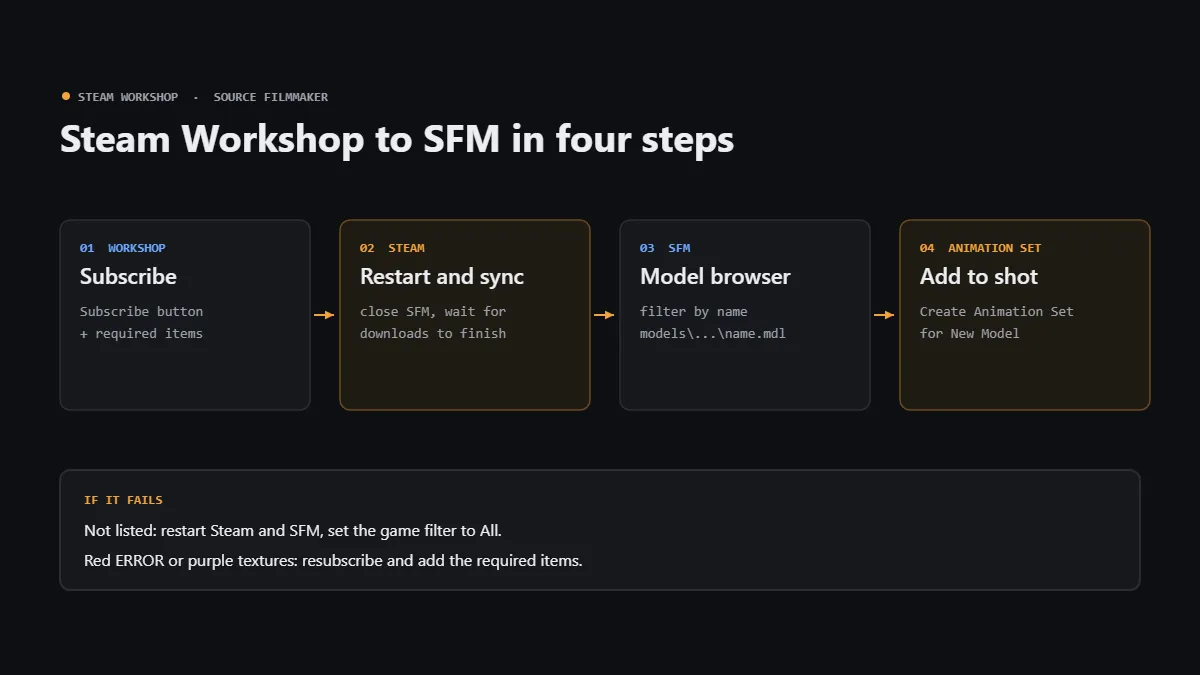
To import SFM models from the Steam Workshop, subscribe to the item and every required item it lists, then close SFM and let Steam finish downloading. Relaunch Source Filmmaker, open the Animation Set Editor and choose Create Animation Set for New Model to place it. Most problems come from SFM not syncing yet, a wrong model path or a missing materials folder.
To import models into SFM from the Steam Workshop, subscribe to the item, restart Steam, then launch Source Filmmaker. Open the Animation Set Editor and choose Create Animation Set for New Model to place it. The same steps apply to popular fan ports, and our guide to Fortnite SFM models shows how to find credited versions and pose them.
Most problems come from SFM not syncing yet, a wrong model path, or a missing materials folder. This guide covers every step, where Workshop models live on disk, and how to fix them fast.
Subscribe
Click Subscribe on the Workshop item and on every required item it lists.
Sync
Close SFM, let Steam finish downloading, then relaunch so the startup scan copies the files in.
Find
Open the model browser and filter by name to locate the .mdl under models.
Add
Use Create Animation Set for New Model, then move and pose it in your shot.
What You Need Before You Start
You need a Steam account, the Steam client, and Source Filmmaker installed. SFM is free. It sits in your Steam library under the Software section, not under Games, which confuses many new users.
If you have not set it up yet, follow our guide to install Source Filmmaker on Windows first. The steps and folder paths below are the same on Windows 10 and Windows 11.
Next, check your free disk space. Character packs and maps can take several gigabytes each. SFM uses App ID 1840 on Steam, and you will see that number again in the Workshop folder name.
How to Subscribe to SFM Models on the Steam Workshop
Open the Source Filmmaker Workshop page in Steam. You can browse by category, sort by most popular, or filter with tags such as props, characters and maps. Collections bundle related items together, which saves time.
Before you subscribe, read the ratings and comments. Uploaders often list required items, such as a shared texture pack. Also check the license notes, because some creators limit commercial use or reuploads of their work.
When you are ready, click the green Subscribe button. Steam adds the item to your download queue straight away. From then on, Steam will auto-update that item whenever the author publishes a new version.
Where Steam Workshop Downloads Go
Steam first downloads Workshop files to your Steam library folder at steamapps\workshop\content\1840. On a default install, that folder sits inside C:\Program Files (x86)\Steam. Each item gets its own numbered subfolder.
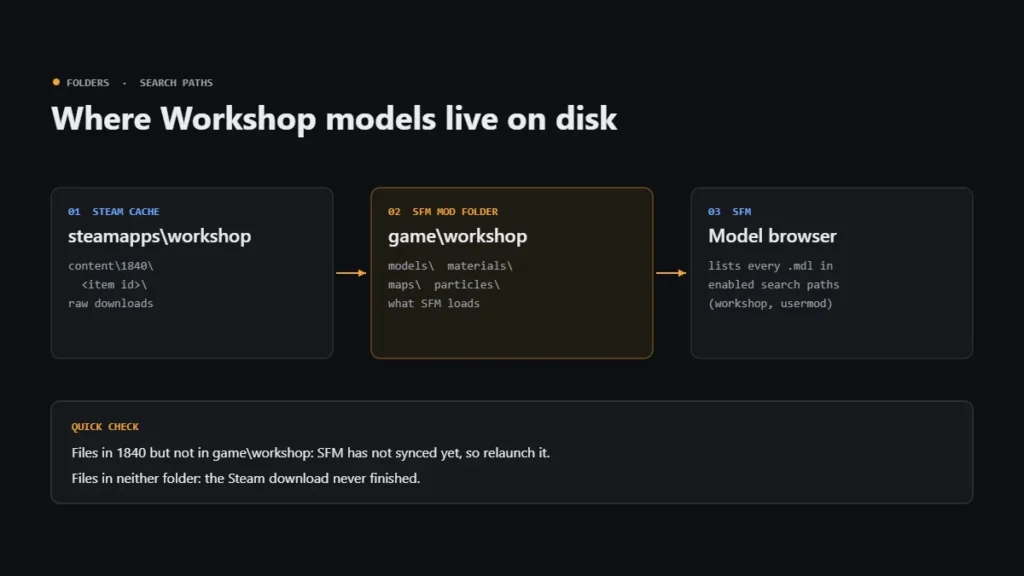
SFM then copies or mounts that content into its own workshop folder at SourceFilmmaker\game\workshop. This is the mod folder SFM actually reads. It lives inside the game folder, next to usermod and the bundled tf and hl2 folders.
So if a model is missing, check both places. If the files exist in content\1840 but not in game\workshop, SFM has not synced yet. If neither folder has them, the download never finished.
Steam cache    ...\Steam\steamapps\workshop\content\1840\<item id>
SFM workshop   ...\SourceFilmmaker\game\workshop\models\...
Manual installs ...\SourceFilmmaker\game\usermod\models\...
Launch SFM So Workshop Items Sync
SFM loads content at startup. As a result, new subscriptions never appear in a session that is already open. Save your work, close SFM, and wait for Steam to finish downloading before you relaunch.
Check the Downloads page in Steam to confirm the queue is empty. If an item seems stuck, restart Steam itself. That forces a fresh check of every subscription and usually clears stalled downloads.
Then launch SFM from your library. During the startup scan, SFM syncs Workshop content into game\workshop. With large subscriptions, this first launch can take a few minutes, so let it finish before you open a session.
How to Add a Workshop Model to Your Scene
Once SFM is open, adding a model takes under a minute. Valve documents the same process on its Valve Developer Community page on adding objects. Follow these steps in order.
- Open or create a session, then move the playhead inside the shot where the model should appear.
- In the Animation Set Editor, click the Add button in the upper left, or right-click empty space in the animation set list.
- Choose Create Animation Set for New Model to open the model browser.
- Type part of the model name in the Filter box, or open folders in the tree on the left.
- Select the .mdl file and click Open.
- Find the model in the viewport, placed near the scene camera, then move and pose it.
The new model also shows up in the animation set list. From there, you can rename it, lock controls, or select bones for posing. If it appears in the wrong spot, simply drag it into place.
Character models usually load with a full rig ready to pose. Props may only have a root control. That is normal, so do not assume a prop is broken just because it has few controls.
Finding the Model Path in the Model Browser
Every model sits under a models folder, so its model path always starts with models/. For example, a Workshop character might live at models/authorname/charactername/character.mdl. Many uploaders use an author folder like this.
The Workshop page or readme often lists the exact path. Look for it in the description before searching blind. Player models, props and weapons tend to sit in clearly named subfolders, such as a props folder.
The model browser also has a game filter that limits results to one mod. Set it to all or to workshop so you do not hide your new item. Then use the folder tree to drill down to the .mdl file.
Enabling Workshop and Custom Folders in the Search Paths
SFM only reads folders listed in its search paths. These are stored in gameinfo.txt inside usermod. Normally, the workshop folder is already enabled. However, a reinstall or a manual edit can switch it off.
To check, right-click Source Filmmaker in your library and choose Launch SDK. In the SDK launcher, pick Edit Search Paths for Selected Mod. Make sure the checkbox next to workshop and any custom folder is ticked, then restart SFM.
Order matters too. Mod folder priority runs from the top of the list down. Valve also notes that game assets take precedence over custom content with identical names, so give your files unique folder names.
Loading Workshop Maps and Particles
Workshop maps sync into the maps folder as .bsp files. To use one, open the Load Map option in SFM and pick the map name from the list. The viewport then reloads with the new environment.
Particle effects arrive as .pcf files in the particles folder. To add one, use the same Add menu and choose Create Animation Set for New Particle System. Then pick the effect, such as smoke or sparks, by name.
Sounds work the same way. Workshop audio lands in the sound folder and appears in the sound picker. Like models, maps and particles only show up after you restart SFM so the startup scan can find them.
Installing Models From Non-Workshop Downloads
Sites like SFMLab and GameBanana host models that never reach the Workshop. These come as an archive. Extract it with 7-Zip or WinRAR, then look for the models and materials folders inside.
Copy both folders into a mod folder under SourceFilmmaker\game. Many guides suggest usermod. Still, a separate custom folder is safer, because it keeps your downloads away from core files. Use a short name with no special characters.
Finally, add that custom folder in Edit Search Paths for Selected Mod and restart SFM. If a model ships in a compiled form you need to inspect or fix, our guide to decompiling SFM models with Crowbar covers that.
Unsubscribing and Cleaning Up Old Content
To remove an item, open its Workshop page and click Unsubscribe. You can also manage everything in bulk from the Subscribed Items list on your Workshop profile. Steam removes the files on its next sync.
Sometimes leftover files stay in game\workshop after you unsubscribe. Close SFM and delete leftover files by hand if a folder lingers. Keep a backup first, because removing a model breaks any saved .dmx session that uses it.
If SFM starts acting oddly after a cleanup, run Steam’s Verify Integrity of Game Files tool on Source Filmmaker. It restores any missing core files without touching your sessions. Never delete the usermod folder, because it holds your saved sessions and SFM’s default settings.
Troubleshooting Workshop Models in SFM
Most Workshop problems fall into a few clear patterns. The table below matches each symptom to its usual cause and fix. Start with the simplest check, which is always a full restart of Steam and SFM.
The purple and black checkerboard, sometimes called magenta, means SFM found the model but not its textures. Check that the VMT and VTF files sit under materials, matching the path the model expects. Our Crowbar decompile and recompile guide explains how those paths get set.
Also note that the Model Viewer can be buggy. A model may look broken there but work fine in SFM. Always test inside a real session before you give up on an item.
Performance Tips for Heavy Workshop Models
Workshop models vary widely in polycount and texture resolution. A single high-detail character can eat a lot of VRAM and RAM. Too many at once will drop your viewport frame rate and can trigger a crash.
To keep things smooth, load only the models each shot needs. Reduce the number of lights with shadows while you animate. Also, use the Work Camera for blocking, then switch to the scene camera for final framing.
Before a long render, save the session and close other programs. Lower your render settings for test passes, then raise them for the final export. If a rig feels slow to pose, hide unused models in that shot.
Steam Workshop to SFM FAQs
Do I Need to Restart SFM After Subscribing to a Workshop Item?
Yes. SFM scans content only at startup, so close it, let Steam finish downloading, and launch it again.
Where Are SFM Workshop Models Stored?
Steam downloads them to steamapps\workshop\content\1840, and SFM syncs them into SourceFilmmaker\game\workshop, which is the folder it actually reads.
Why Is My Workshop Model Purple and Black?
Its textures are missing. Subscribe to any required items listed on the Workshop page, or check that the materials folder is installed.
Can I Edit a Model I Downloaded from the Workshop?
Yes, with tools like Crowbar to decompile, Blender to edit, GCFScape to extract packed files, and VTFEdit for textures, as long as the license allows it.
Can I Use Workshop Models in Commercial Videos?
It depends on each model’s licensing. Many are ports of game characters, so check the uploader’s notes and the original game’s terms before any commercial use.
Do Workshop Models Work When Steam Is Offline?
Yes, once they have synced. Items already in game\workshop load offline, but new subscriptions and updates need Steam online.