
Quick Answer
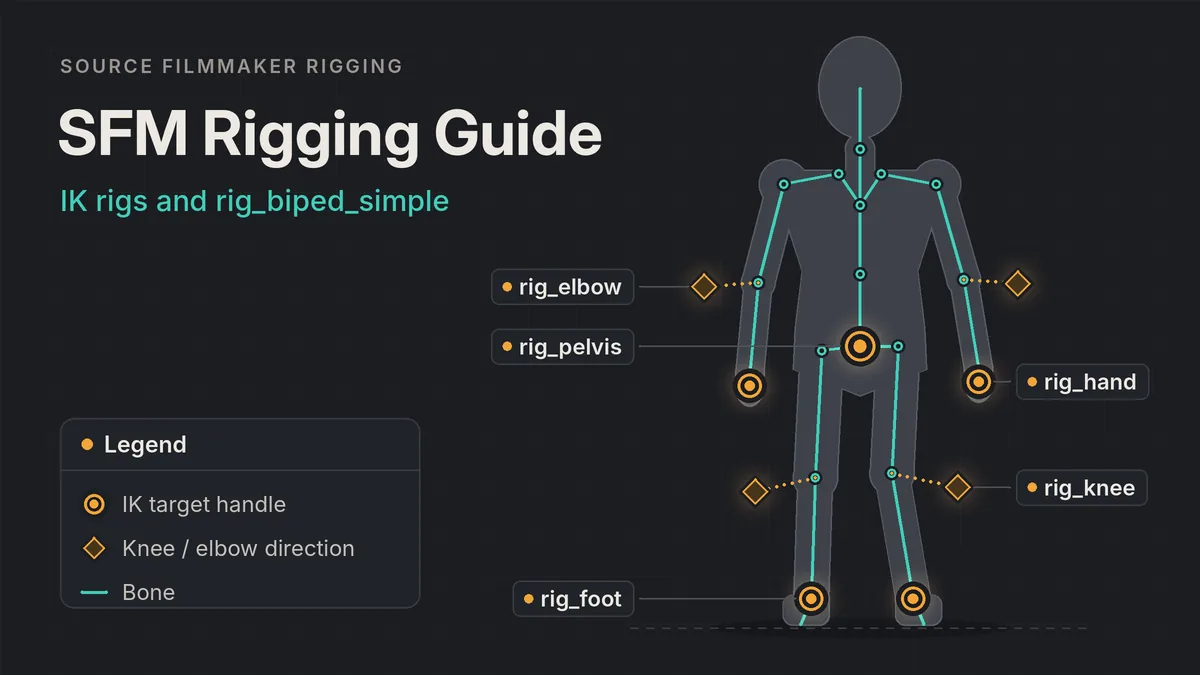
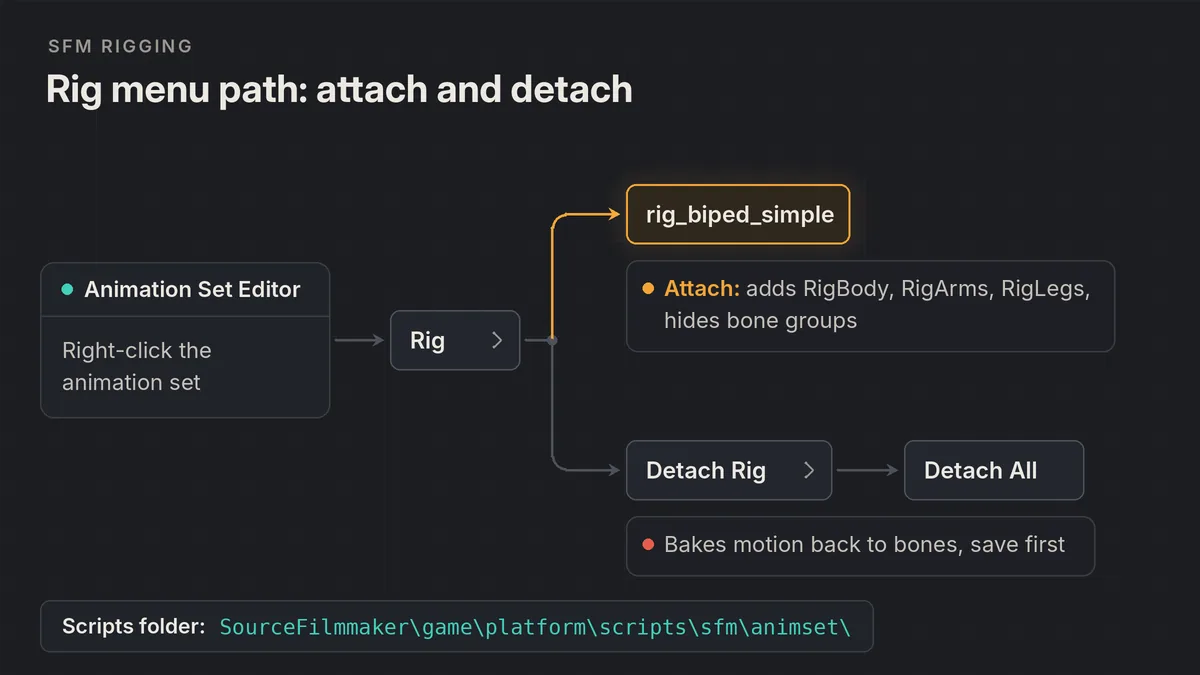
SFM rigging adds control handles that drive a model’s bones through constraints, so one foot handle moves the whole leg. Right-click the character’s animation set in the Animation Set Editor, open the Rig submenu and pick rig_biped_simple. The script builds IK chains for the arms and legs, adds knee and elbow direction handles, and hides the raw bones.
Load a biped model
Add the character to your shot so it gets its own animation set in the Animation Set Editor.
Open the Rig submenu
Right-click the animation set, hover over Rig and choose rig_biped_simple from the list of installed scripts.
Check the new groups
Look for RigBody, RigArms and RigLegs in the control list. Those groups mean the script found the bones it needed.
Pose with handles
Move the hand and foot handles to place limbs, then use the knee and elbow handles to aim each bend.
What a Rig Actually Does in Source Filmmaker
Every model you load into SFM arrives with a skeleton of bones. Out of the box, you animate those bones directly: select, rotate, key. That works, but posing a full body this way is slow because every joint is set by hand.
A rig script adds a second layer. It creates new handles, usually named with a rig_ prefix, and constrains the real bones to them. You move and key the handles; the bones follow. That is why a rig changes how you animate without changing the model file itself: nothing is recompiled, and the same model can be rigged in one session and left as plain bones in another.
Rig scripts are small Python files. SFM looks for them in this folder inside your install:
SourceFilmmaker\game\platform\scripts\sfm\animset\
The names in the right-click Rig submenu match the file names in that folder, minus the .py extension. Drop a new script there, restart SFM, and it appears in the menu. If you installed SFM somewhere other than the default Steam library, our Source Filmmaker install guide shows where the game folder lives.
How to Apply rig_biped_simple
rig_biped_simple is the general-purpose biped rig that ships with SFM, and it is the script most Valve character tutorials use. Valve’s own guide to making custom rigs starts from a copy of it, which tells you how central it is to the tool.
The Menu Path
Find the character in the Animation Set Editor and right-click its animation set (the character’s name, not one of its sliders). Hover over Rig and click rig_biped_simple. The script runs immediately, with no dialog or settings.
Apply the rig before you start keying the body. Attaching a rig bakes the model’s current motion into the new handles, and SFM community veterans warn that adding and removing rigs repeatedly loses keyframes. Rig first, animate second.
What Changes in the Animation Set Editor
After the script runs, the control list looks different. New groups appear, typically RigBody, RigArms and RigLegs, with separate right and left subgroups for each limb. The original Body, Arms, Legs and Root bone groups are hidden, because the rig now drives those bones.
Hidden does not mean deleted. Open the gear menu at the top of the Animation Set Editor and turn on the option to show hidden controls. The bone groups reappear, and you can unhide a specific group from its own right-click menu. Face sliders are not touched by the rig, so lip sync and expressions work the same way as before. Our SFM lip sync tutorial covers that side of the character.
What rig_biped_simple Creates
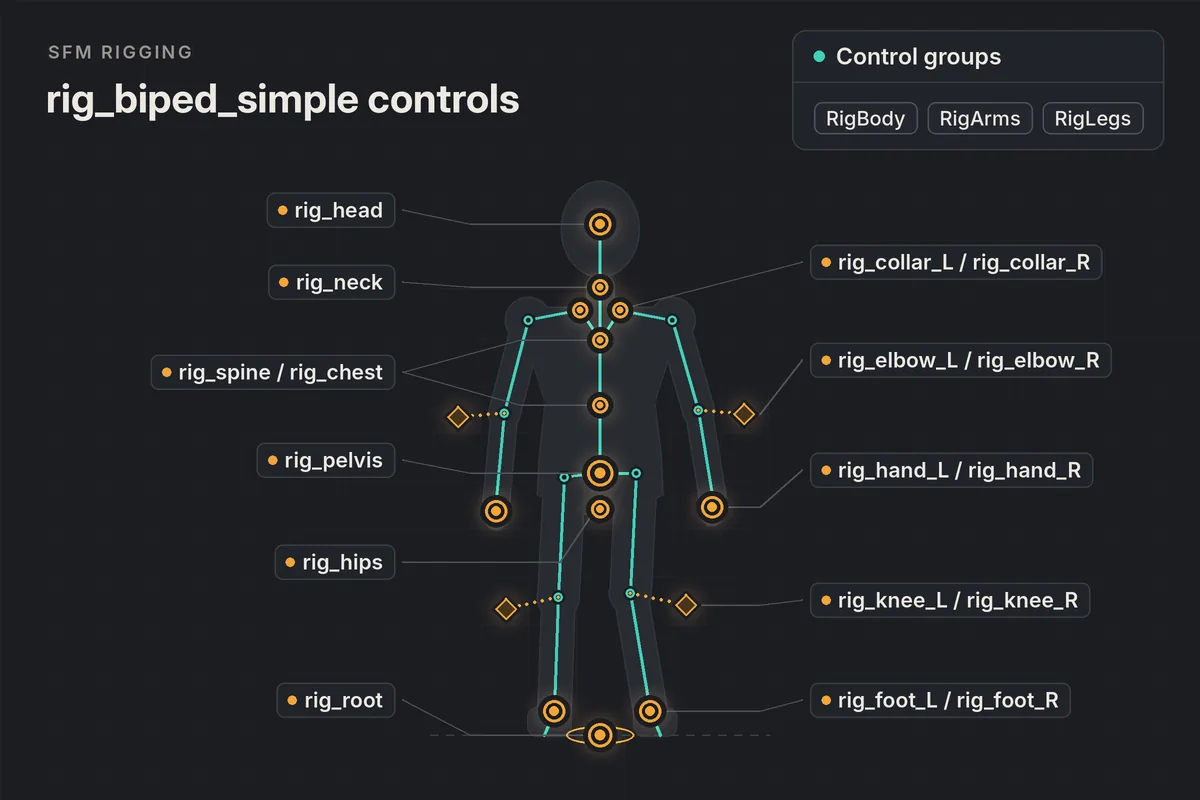
The script builds one handle per major body part, then links them into a hierarchy: moving the root carries everything, while a hand or foot handle affects only its limb.
Body and Spine Controls
rig_root sits at the base and moves the entire character. rig_pelvis moves the torso while the hands and feet stay where they are, which is how you make a character crouch or shift weight without the feet sliding. rig_hips rotates the pelvis without dragging the spine along, useful for a walk cycle’s hip sway. The spine, chest, neck and head handles behave much like the original bones.
Arm and Leg IK Chains
Each limb gets an IK solver. For the legs, rig_foot_L and rig_foot_R are the targets: the solver bends the thigh and calf so the foot reaches the handle. For the arms, rig_hand_L and rig_hand_R play the same role for the upper arm and forearm. rig_collar handles shrug and drop the shoulders.
Each chain solves two bones plus an end point, which is why tails and long multi-joint limbs do not rig cleanly with a biped script.
Knee and Elbow Direction Handles
An IK solver knows where the foot should be, but it does not know which way the knee should point. rig_knee and rig_elbow answer that. Each one is a small handle placed in front of the knee or behind the elbow, and the limb bends toward it. Other 3D packages call this a pole vector. In SFM the knee handles are parented to the feet, so they travel with each step, and the elbow handles follow the collars.
Foot Roll and Fingers
If the model has heel and toe pivot attachments, the script also adds a foot roll slider for each foot, which peels the heel off the ground before the toes. Models without those attachments simply skip this control. Fingers are not put on IK. They stay as ordinary bone controls, grouped under each arm, so you curl them one joint at a time.
| Handle | Controls | Typical use |
|---|---|---|
| rig_root | Whole character | Placing the character in the scene |
| rig_pelvis | Torso position, limbs stay planted | Crouches, weight shifts, bounce |
| rig_hips | Pelvis rotation only | Hip sway in walks and idles |
| rig_foot_L / rig_foot_R | Leg IK target | Planting feet, steps |
| rig_knee_L / rig_knee_R | Knee bend direction | Knock-kneed or bow-legged stances |
| rig_hand_L / rig_hand_R | Arm IK target | Grabbing props, leaning on surfaces |
| rig_elbow_L / rig_elbow_R | Elbow bend direction | Flaring or tucking the arms |
| rig_collar_L / rig_collar_R | Shoulder position | Shrugs and reaches |
Bone Naming: Why rig_biped_simple Fails on Some Models
The script does not analyze a skeleton. It searches for bones by exact name, and if a required bone is missing, it stops with an error in the console.
The names it looks for follow Valve conventions. Half-Life 2 style models use ValveBiped.Bip01_ names, such as ValveBiped.Bip01_Pelvis and ValveBiped.Bip01_L_Thigh. Team Fortress 2 models use a shorter bip_ scheme, such as bip_pelvis and bip_knee_L. The script also accepts plain Bip01_ names. Valve’s rig documentation lists the bones a biped rig needs: root, pelvis, upper leg, lower leg, foot, collar, elbow and hand. Spine and neck bones are optional.
That explains most “the rig did nothing” reports. A model ported from another game, or exported from a tool that names bones LeftUpLeg or thigh.L, will not match. You have three options:
- Check the model’s download page. Many community ports ship with their own rig script, which goes in the same animset folder.
- Copy rig_biped_simple.py, rename the copy, and edit the bone names it searches for. Valve’s custom rig guide walks through exactly this edit for a Portal 2 robot.
- Rename the bones to Valve names before compiling. If you are porting the model yourself, do this in the Blender to SFM stage, or decompile an existing model with Crowbar, fix the names and recompile.
Community authors have also published rig scripts for whole game libraries. One example is the SFM_Rigs collection on GitHub, which includes rigs for Black Mesa creatures and other non-human models. Only install scripts from sources you trust.
IK vs FK: When to Use Each
Forward kinematics (FK) means rotating each joint in order, parent first. Inverse kinematics (IK) means placing the end of a chain and letting the solver work out the angles.
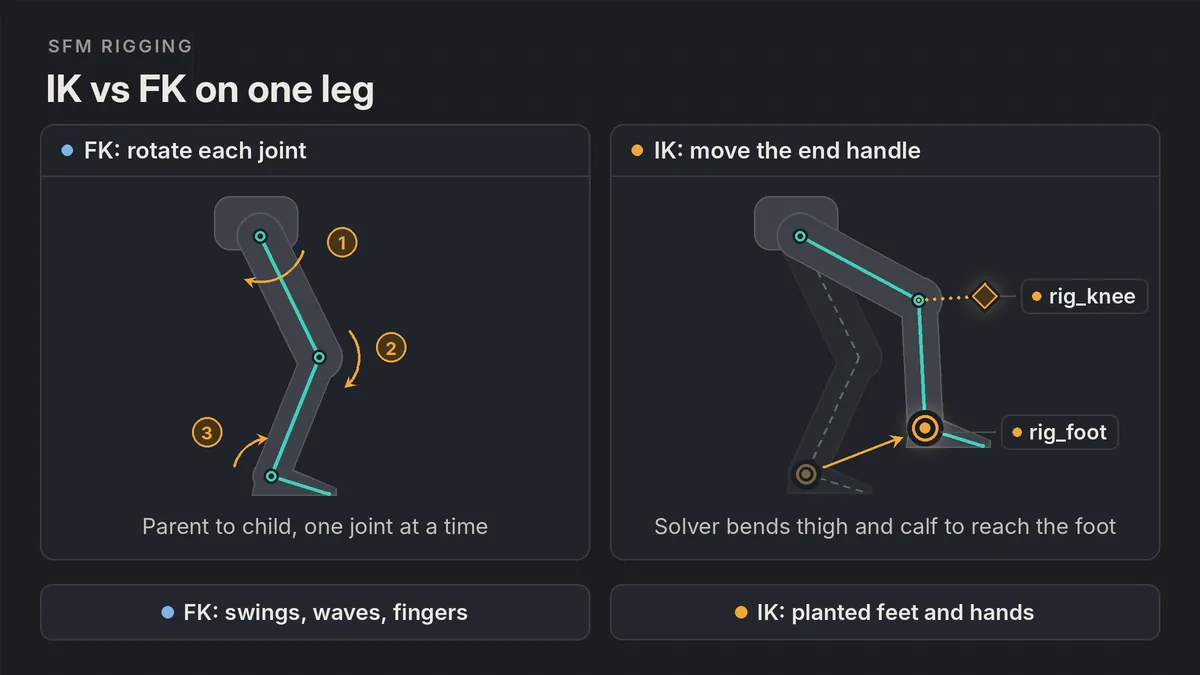
IK wins whenever a hand or foot has to stay in contact with something. Walking, standing, kneeling, pushing against a wall or holding a rail all need the end of the limb pinned in world space while the body moves. With IK, you key the foot once and move the pelvis freely.
FK wins for swinging, free motion. A punch, a wave or an arm swinging during a run reads as an arc from the shoulder. An IK hand handle tends to travel in straight lines that look mechanical.
The catch is that rig_biped_simple has no built-in IK/FK switch. While it is attached, the arm and leg bones are driven by the rig, and SFM sets the hidden bones aside, so keying them directly has no lasting effect on the pose. If a shot needs FK arms, the usual approaches are to animate those arms before attaching the rig, use a separate shot with an unrigged copy, or use an edited rig script that leaves the arms out.
Posing Tips for IK Rigs
Build IK poses from the ground up: feet first, then pelvis height, then hands. That order keeps the character’s weight believable.
Lock the Feet
Key both foot handles on the first frame of a shot, then key them again wherever a foot lifts or lands. Between those keys, a planted foot should hold one position. If it drifts, check the Graph Editor for an ease curve that creeps between two identical values, and flatten it.
Aim the Knees and Elbows
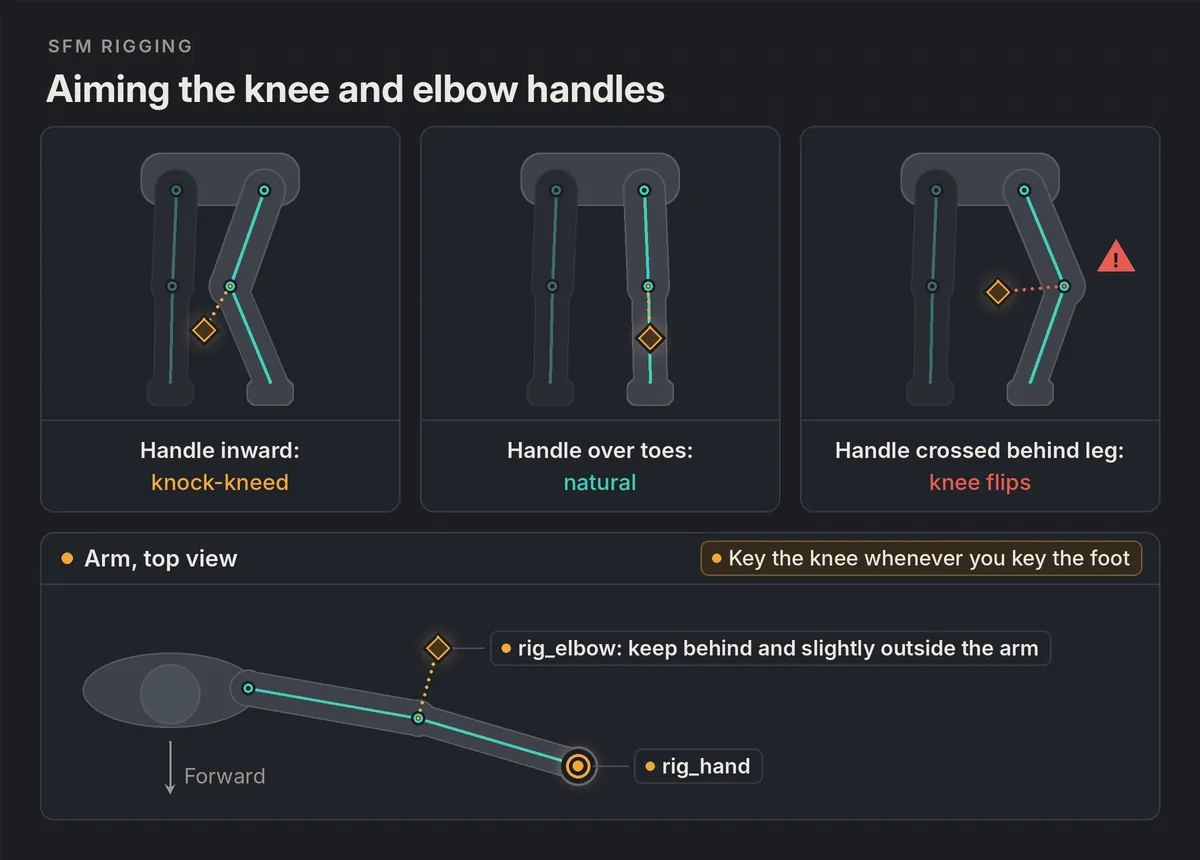
Every time you move a foot handle a long way, check the matching knee handle. Knees should point roughly over the toes. If a knee drifts inward, pull its handle outward rather than rotating the thigh. For elbows, keep the handle behind and slightly outside the arm. A handle that crosses to the wrong side of the limb is the most common reason a joint suddenly flips.
Avoid Full Extension
If you pull a hand or foot handle past the length of the limb, the solver straightens the chain and the limb pops. Leave a little bend in standing legs and reaching arms.
Pose for the Camera
Check silhouettes through the shot camera, not the work camera. Our SFM camera tips explain how to frame a shot before you commit to a pose.
Animating Rigs in the Motion Editor and Graph Editor
Rig handles are ordinary controls, so both animation editors treat them like any bone. Each handle has position and rotation channels. IK targets such as feet and hands mostly use position, while the spine and head handles mostly use rotation. If you are new to either editor, start with our guide to the SFM Motion Editor and Graph Editor.
- In the Motion Editor, select rig_pelvis and use a time selection with falloffs to add a bob to a walk without touching the feet.
- In the Graph Editor, look at a planted foot’s position curves. They should be flat for every frame the foot is on the ground.
- Ease a lifting foot off the ground and drop it into contact faster, which gives each step weight.
- Keep knee handles keyed whenever their foot is keyed. A foot that moves without its knee often causes a twist halfway between keys.
Full SFM Rigging Workflow, Step by Step
This walkthrough assumes a Valve biped, such as a Team Fortress 2 or Half-Life 2 character, placed in a lit map with a shot camera. If you are using a Workshop model, our guide to importing SFM models from the Steam Workshop covers where those files end up.
Check the skeleton
Confirm the model uses ValveBiped.Bip01_ or bip_ bone names, or that it came with its own rig script.
Save the session
Save before rigging so you can roll back if the script fails or the pose resets.
Attach the rig
Right-click the animation set in the Animation Set Editor, open Rig and click rig_biped_simple.
Confirm the groups
Look for RigBody, RigArms and RigLegs. If they are missing, open the console and read the error.
Plant the feet
Position both foot handles on the ground and key them on the first frame.
Set the body
Move rig_pelvis for height and weight, then rotate rig_hips and the spine handles.
Place hands and aim joints
Move the hand handles, then adjust knee and elbow handles until no joint bends the wrong way.
Finish and refine
Pose fingers and head with FK controls, then clean curves in the Graph Editor and play the shot at full speed.
When the pose or animation holds up, render a test with our best SFM render settings to catch any joint that pops under motion blur.
How to Detach or Remove a Rig
Rigs come off through the same right-click menu that puts them on. Right-click the animation set, open Rig, and look at the top of the list for Detach Rig. Users on the SFM forums report the path as Rig, then Detach Rig, then Detach All. The original bone groups return to view once the rig is gone.
Detaching has the same side effect as attaching: the current motion is baked from one set of controls to the other. Keys can be lost in the process, and frames outside the animation set’s time range may drop back to a zeroed default pose. If you have animation you want to keep, save a copy of the session first.
Common SFM Rigging Errors
| Symptom | Likely cause | Fix |
|---|---|---|
| Rig runs, nothing changes | Bone names do not match the script | Use the model’s own rig script or edit a copy of rig_biped_simple |
| Script error in the console | A required bone, such as pelvis or collar, is missing | Read the bone name in the error and map it in a custom script |
| rig_biped_simple not in the Rig menu | Script missing from the animset folder | Verify SFM’s files through Steam, then restart SFM |
| Downloaded rig not in the menu | Wrong folder or a .txt or .html extension | Save it as a .py file in scripts\sfm\animset and restart |
| Knee or elbow flips mid-shot | Direction handle crossed the limb | Key the knee or elbow handle and keep it on one side |
| Limb snaps straight | Handle pulled beyond limb length | Bring the hand or foot handle closer to the body |
| Limbs twist after rigging | Unusual bone orientation on a ported skeleton | Use a rig made for that model, or adjust the offsets in a custom script |
A few mistakes do not throw errors but still ruin shots:
- Animating the body first, then rigging. The attach step bakes motion and can drop keys you spent time on.
- Rigging and unrigging repeatedly to switch between IK and FK. Each cycle risks losing animation.
- Keying hidden bones while the rig is attached. The rig drives those bones, so the change does not stick and the limb ends up in a pose you did not expect.
- Forgetting the knee handles. A foot moved without its knee often twists the leg between keys.
SFM Rigging FAQs
How do I rig a model in Source Filmmaker?
Right-click the model’s animation set in the Animation Set Editor, open the Rig submenu and choose rig_biped_simple, or the rig script that came with the model. The script adds IK handles for the hands, feet, knees and elbows and hides the original bone groups.
Why does rig_biped_simple not work on my model?
The script finds bones by exact name. It expects Valve names such as ValveBiped.Bip01_Pelvis or the TF2 style bip_pelvis. Models with other bone names need their own rig script, an edited copy of rig_biped_simple, or renamed bones.
Where are SFM rig scripts stored?
Rig scripts are Python files in SourceFilmmaker\game\platform\scripts\sfm\animset inside your Steam library. Each file name appears in the Rig submenu. Add new scripts there and restart SFM to see them.
How do I remove a rig in SFM?
Right-click the animation set, open Rig and use the Detach Rig option at the top of the list, then Detach All. Save first, because detaching bakes the motion back to the bones and can lose keyframes.
Should I use IK or FK in SFM?
Use IK when a hand or foot must stay planted, such as walking, standing or leaning. Use FK for free swinging motion such as punches, waves and arm swings. Fingers, the head and the spine usually stay in FK.
Why do my character’s knees bend the wrong way?
The knee direction handle has crossed to the wrong side of the leg. Move rig_knee in front of the knee, roughly over the toes, and key it whenever you key the foot so it cannot drift between poses.
2 thoughts on “SFM Rigging Guide: IK Rigs and the rig_biped_simple Script”