
Quick Answer
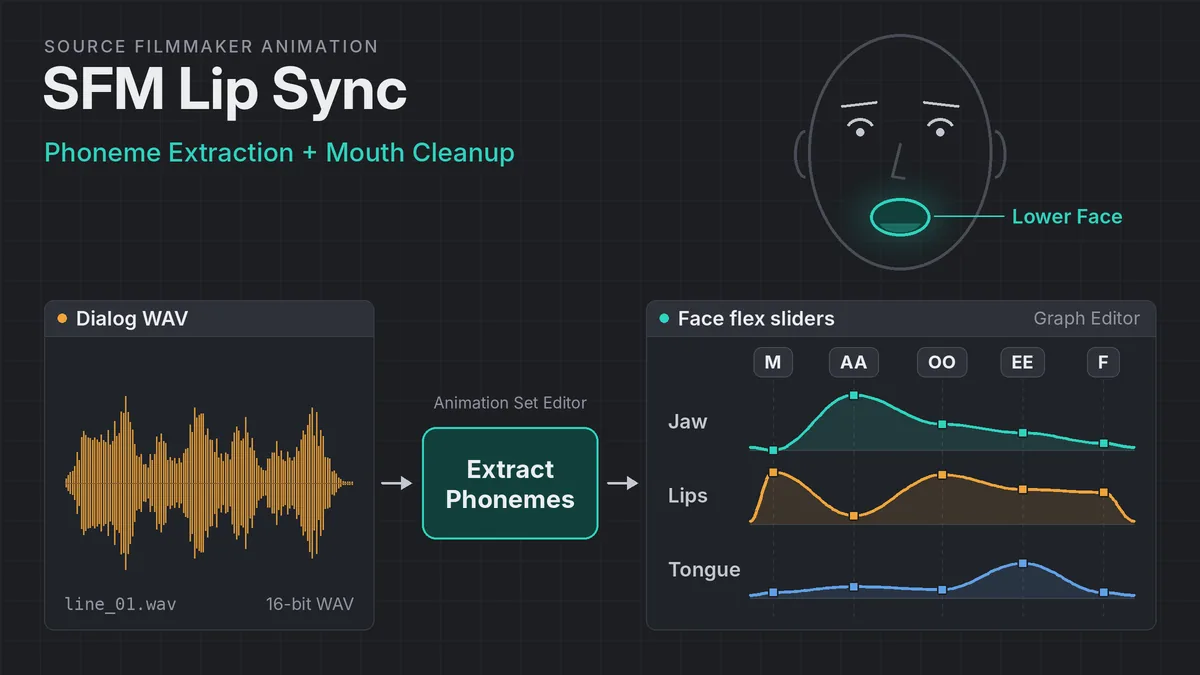
SFM lip sync starts with an automatic first pass. Add a WAV dialog clip, turn on its waveform, then right-click one of the character’s controls and choose Extract Phonemes. SFM reads the audio and writes mouth animation onto the face sliders. The result is rarely final, so clean it up in the Motion Editor and Graph Editor until the mouth reads clearly.
Add a WAV dialog clip
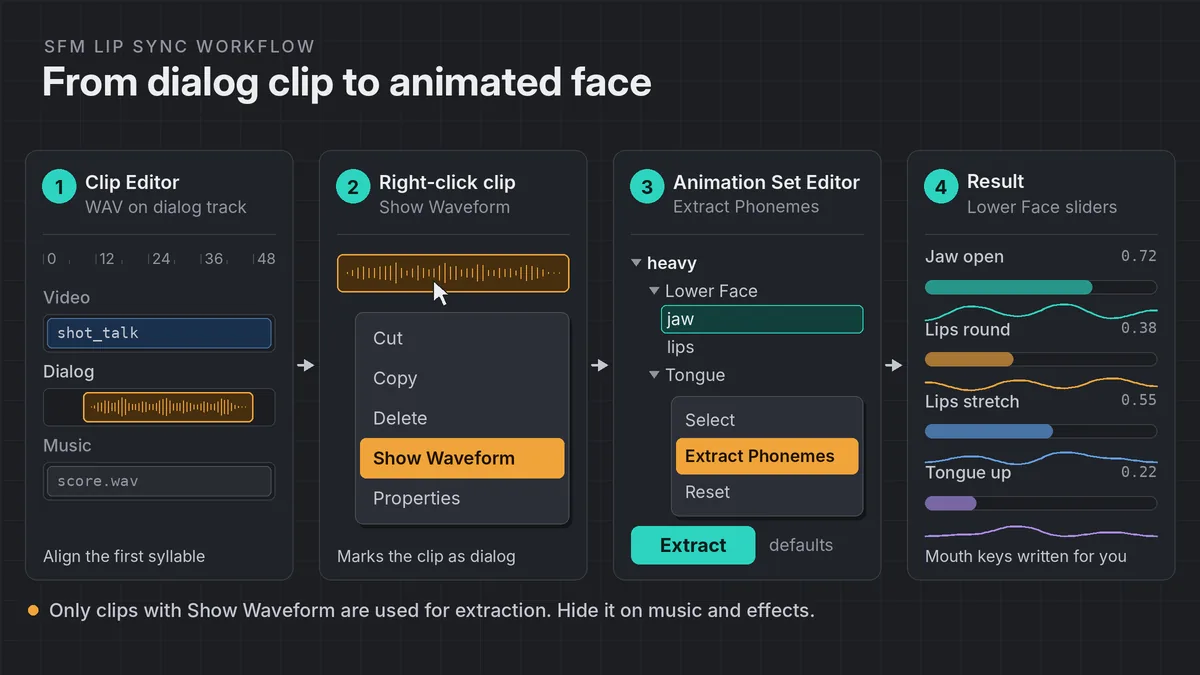
Drop the line into the dialog track in the Clip Editor so it lines up with the shot.
Show the waveform
Right-click the sound clip and choose Show Waveform. Only clips with a visible waveform are used for extraction.
Extract phonemes
Right-click a control on the character in the Animation Set Editor, choose Extract Phonemes, keep the defaults and click Extract.
Clean up the mouth
Select the Lower Face and Tongue controls, smooth the jitter, then fix timing and key shapes by hand.
What You Need Before You Extract Phonemes
Most failed lip sync attempts in SFM come down to the model or the audio file, not the extraction step. Check three things before you start.
First, the model. Valve’s documentation states that automatic phoneme extraction only works on the HWM Team Fortress 2 classes and on models that follow the Half-Life 2 FACS facial control layout. For TF2 characters, load the version from the player/hwm/ folder rather than the standard player model, which lacks the full set of facial flexes. If you are bringing in community characters, our guide to importing SFM models from the Steam Workshop explains where those files end up.
Second, the audio. Use a WAV file, not MP3. SFM users have long reported that MP3 clips play back fine but produce no mouth movement. A plain 16-bit, 44.1 kHz WAV is the safe choice, since community reports suggest higher sample rates can fail. Trim silence at the start so the waveform lines up with the shot.
Third, the phoneme presets. Extraction does not move sliders directly. It triggers a set of phoneme presets, one per speech sound, that each describe a mouth shape. HWM models ship with these presets. Many custom models do not, and on those models extraction runs but nothing visible happens.
| Model type | Phoneme presets | Auto lip sync |
|---|---|---|
| TF2 HWM class models | Included | Works out of the box |
| Standard TF2 player models | Missing, limited flexes | No usable result |
| HL2 FACS-compliant models | Can be generated in the Element Viewer | Works once presets exist |
| Custom or ported models with flexes | Must be built and saved by hand | Works only after setup |
| Models with no face flexes | Not possible | No, animate the jaw bone instead |
How Phoneme Extraction Works in SFM
Phonemes are the individual sounds in speech, such as the “m” in “mom” or the “oo” in “food”. SFM’s extractor analyzes the dialog waveform, guesses which phonemes occur and when, then blends the matching phoneme presets on the face over time. The output is written as animation on the facial control sliders, the same sliders you would drag by hand.
Adding the Sound Clip
Open the Clip Editor, which is where sound clips live. Drag the WAV from the Element Viewer or the sound browser onto a dialog track inside your shot. Slide the clip so the first syllable starts where you want the line to begin. If the clip belongs to a different shot, extraction will not line up with the character you are animating.
Show Waveform and Extract Phonemes
Right-click the dialog clip and choose Show Waveform. Valve notes that only clips with Show Waveform enabled are used for automatic lip sync, so hide the waveform on any music or effects clips sharing the timeline. Otherwise SFM may try to read those sounds as speech.
Next, in the Animation Set Editor, expand the character’s animation set. Right-click one of its controls and choose Extract Phonemes. A dialog opens. Valve’s advice is to keep the defaults until you know what you want to change, so click Extract and play the shot. Valve’s lip sync and Extract Phonemes page covers this sequence in full.
Phoneme Maps and Preset Groups
The link between a sound and a mouth shape is the phoneme preset group. Each preset in that group stores slider values for one phoneme. When you switch from the Procedural tab to the Phoneme tab in the presets panel, you see these presets and can drag them like any other preset.
For HL2 FACS-compliant models without presets, Valve describes a built-in fix. Right-click the animation set, choose Show in Element Viewer, then AnimationSet. Right-click the root node and run Create Phoneme Presets based on HL2 FACS controls. Save your session first: Valve warns that the Element Viewer has very few safeguards and can corrupt a scene.
For other custom models, the community approach is to build the presets yourself. Each preset is named with a p_ prefix and covers one phoneme. The group is then exported and saved alongside the model with the model’s file name, replacing .mdl with _phoneme.pre, so SFM loads it as the phoneme group. If you are porting your own character, plan the face flexes during the Blender to SFM stage, because missing shape keys cannot be faked later.
The Speech API Problem on Windows 10 and 11
Searches for SFM lip sync often turn up advice to install the Microsoft Speech SDK 5.1. That advice comes from Faceposer, the older Source SDK facial tool, not from Source Filmmaker itself.
Faceposer relied on a speech recognition library that breaks on Windows Vista and later after Microsoft changed its Speech API. Faceposer users see errors such as “SAPI 5.1 Unable to create recognizer context”. Valve’s Faceposer lip syncing page carries a direct warning not to install SAPI 5.1 on Vista or later. Its workaround copies the speech data and phoneme extractor folders out of the Source Filmmaker bin folder into the Source SDK Base 2013 bin folder, which tells you SFM ships its own extractor files.
In practice, that means:
- Do not install the old SAPI 5.1 SDK on Windows 10 or 11 to fix SFM. It is not a documented fix for SFM, and Valve advises against installing it on modern Windows.
- If extraction runs but the face does not move, the cause is almost always the model, the presets or an MP3 file, not the Speech API.
- If extraction fails outright, verify SFM’s files through Steam, so the bundled extractor files are restored. Our Source Filmmaker install guide shows how.
- Long lines are harder for any phoneme extractor. Splitting a long take into shorter clips usually gives cleaner results.
| Symptom | Likely cause | Fix |
|---|---|---|
| Extraction runs, face stays still | No phoneme presets on the model | Use an HWM model or create the phoneme preset group |
| Extraction runs, face stays still | MP3 dialog clip | Convert the line to 16-bit WAV and re-import |
| Wrong sounds get picked up | Music or effects waveforms visible | Hide Waveform on every clip except the dialog |
| Mouth flutters on every frame | Raw extraction noise | Smooth preset over a time selection |
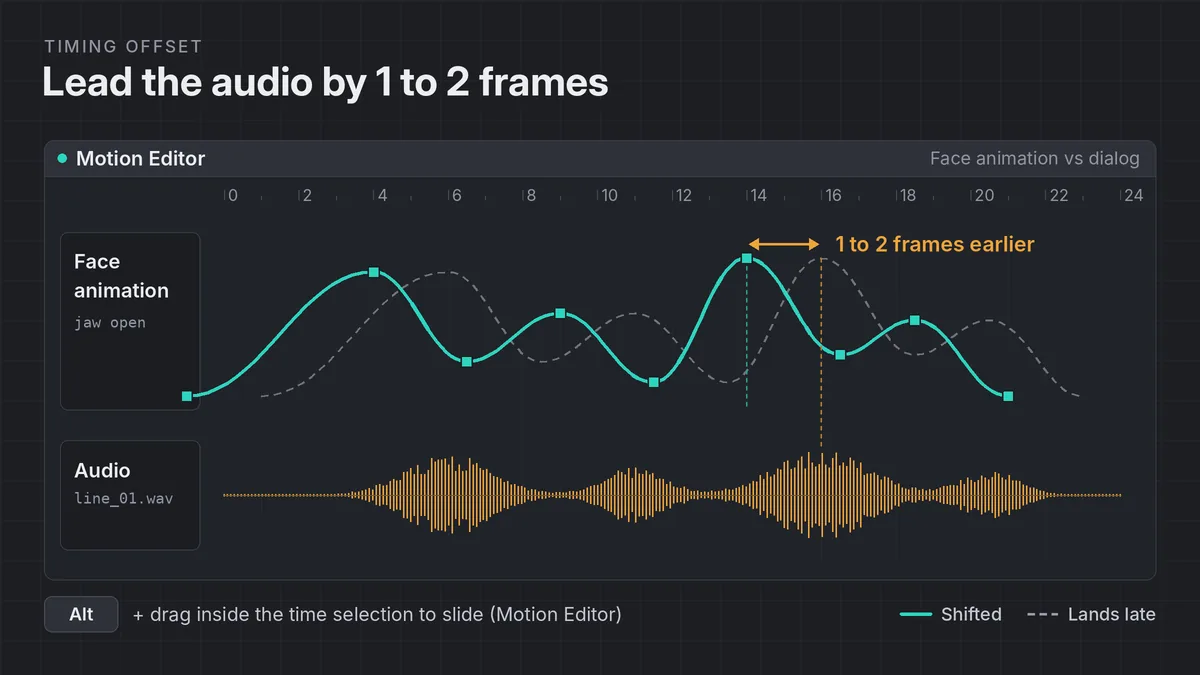
| Mouth lags the voice | Shapes land on the exact sound frame | Shift the face animation one or two frames earlier |
| SAPI 5.1 error message | Faceposer, not SFM | Leave SAPI 5.1 uninstalled and use SFM’s own tool |
Cleaning Up the Generated Mouth Animation
Raw extraction tends to hit every phoneme at full strength. The result looks busy: lips chatter, the jaw pumps on every syllable and closed sounds such as “m” and “b” sometimes never fully close. Cleanup is where lip sync starts to look acted rather than generated. If you are new to the two animation editors, read our SFM Motion Editor and Graph Editor guide first.
Smooth Pass in the Motion Editor
In the Animation Set Editor, select the Lower Face and Tongue controls. Switch to the Motion Editor. Right-click inside it and choose Show Waveform so you can see the dialog behind the curves. Make a time selection over the line, add falloffs, then drag the Smooth preset slider a little at a time. Small drags remove flutter without erasing the shapes that matter.
To mute the audio while you work, click the mute button in the upper right of the timeline.
Curve Fixes in the Graph Editor
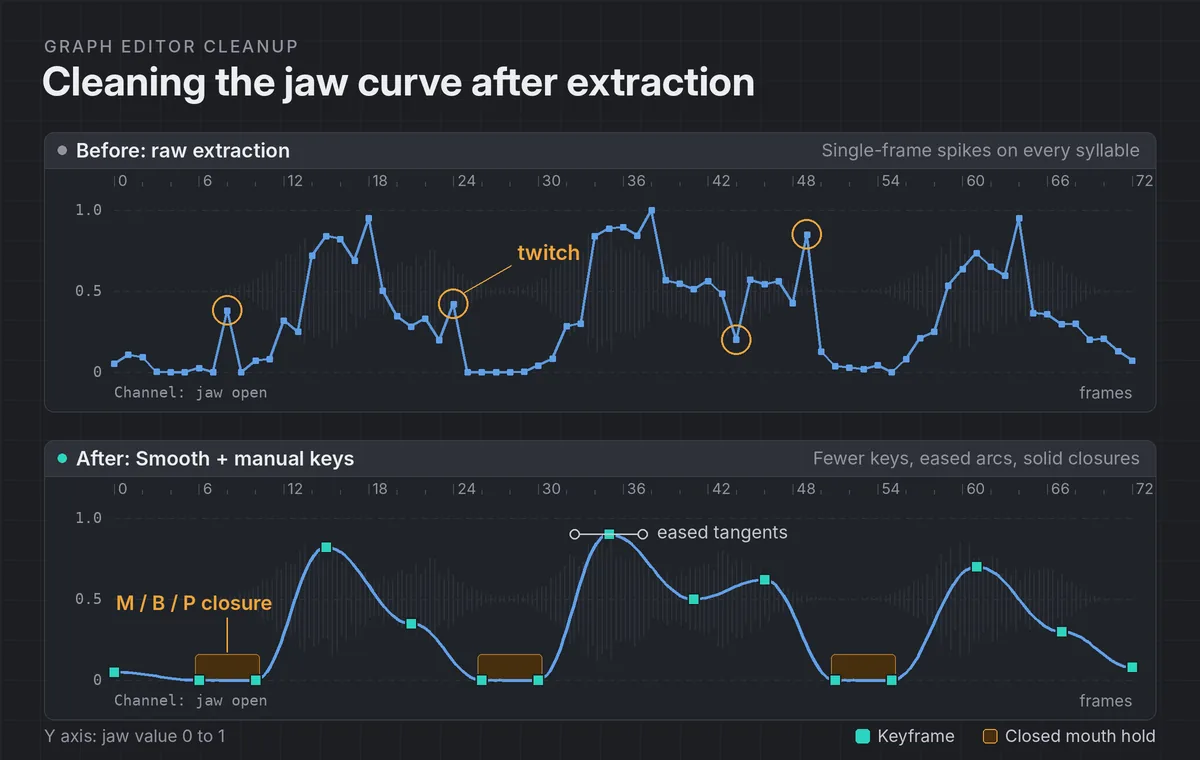
The Graph Editor shows each face slider as a curve. Pick one slider at a time, starting with the jaw-open control, since it carries most of the readable motion. Look for sharp single-frame spikes and dips. Those read as twitches on screen.
- Rectangle-select keys on a spike and drag them with the middle mouse button to bring them in line.
- Use the value fields at the top of the Graph Editor for exact numbers, for example
+=0.1to raise every selected key. - Press M to place a keyframe where you want a hold, such as a closed mouth on “m”, “b” or “p”.
- Shape tangents so the jaw eases open and closed rather than snapping.
Shaping the Mouth With Flex Sliders
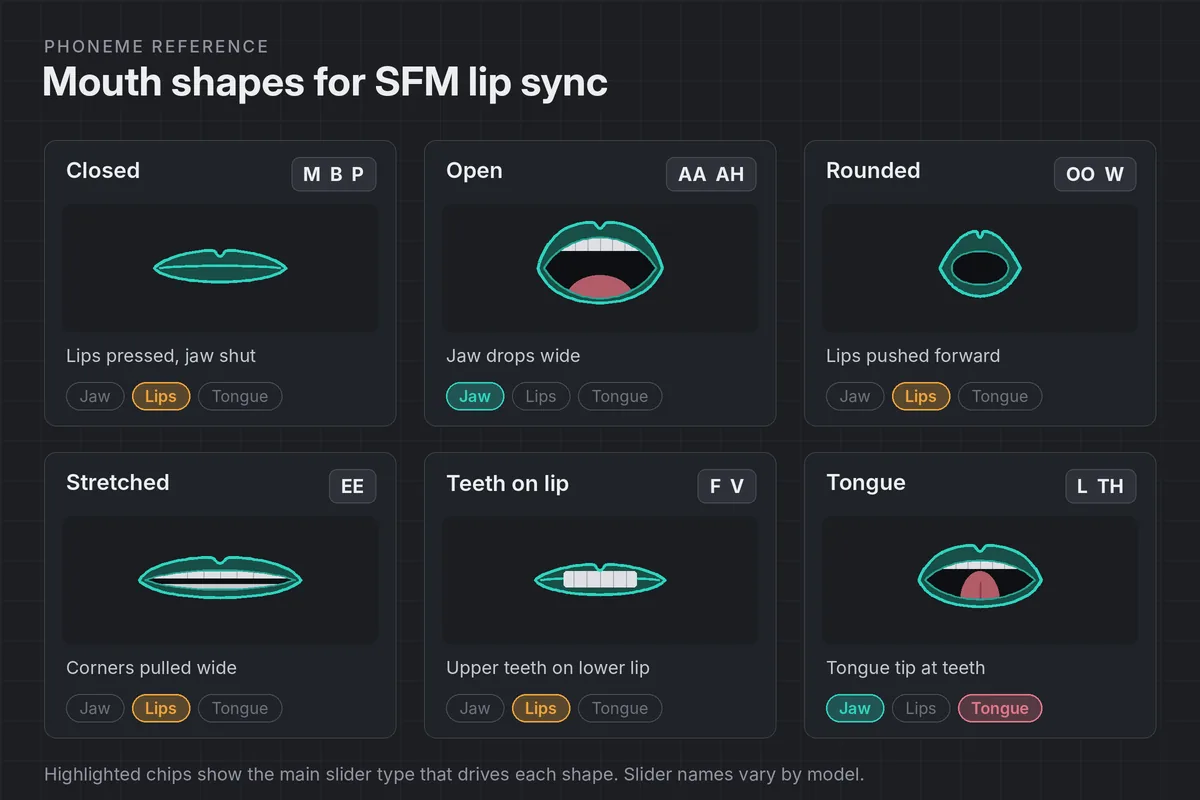
Every slider in the Lower Face group is a flex: a blend between the neutral face and a sculpted shape. Slider names differ between models, so read the labels on your character rather than following a fixed list. Most lip sync relies on four kinds of control.
Jaw Open and Close
The jaw slider sets how wide the mouth opens. Real speech opens the jaw for vowels and nearly closes it between words. A good trick is to animate the jaw on its own first, hitting only the open vowels, then layer the lip shapes on top.
Lip Shapes and Closures
Lip sliders handle rounding, stretching and pressing. Rounded lips sell “oo” and “w”. Stretched lips sell “ee”. Pressed lips sell “m”, “b” and “p”, and these closures are what viewers notice most when they are missing. On HWM models, the LipsV slider blends between open and compressed lips, which makes it useful for these closures.
Exaggeration and Restraint
Extraction tends to give every syllable the same weight. Stressed words deserve wider shapes, and unstressed words can almost disappear. In the Motion Editor, use Offset mode over a short time selection to push a shape further on the key word. In the Graph Editor, scale selected keys with Ctrl+right-drag to soften a whole phrase.
Timing Offsets
Mouth shapes that land exactly on the sound often look late. Animators commonly lead the audio by one or two frames so the shape forms just before the sound is heard. In the Motion Editor, select the whole face animation for the line, hold Alt and drag inside the selection to slide it earlier. Check the result at full playback speed, not by scrubbing.
Full SFM Lip Sync Workflow, Step by Step
This walkthrough uses a TF2 HWM character and a short line of dialog. Start with one character in a lit map and a camera already framed. Our SFM camera tips help you pick a framing that shows the mouth clearly.
Prepare the WAV
Export the line as a 16-bit WAV, trim leading silence, and place it in your SFM sound folder.
Add it to the shot
In the Clip Editor, drag the clip onto a dialog track and align the first syllable with the frame you want.
Isolate the waveform
Right-click the dialog clip and choose Show Waveform. Hide the waveform on music and effects clips.
Run Extract Phonemes
Expand the character’s animation set, right-click a control, choose Extract Phonemes, keep the defaults and click Extract.
Play it back
Press Ctrl+Spacebar to play only this shot. Note words where the mouth chatters, misses a closure or lags.
Smooth the face
Select Lower Face and Tongue, switch to the Motion Editor, make a time selection with falloffs, and drag Smooth in small steps.
Fix key shapes
In the Graph Editor, clean jaw spikes, key solid closures on “m”, “b” and “p”, and widen stressed vowels.
Offset and review
Slide the face animation one or two frames earlier, play the shot at full speed, then save.
Once the dialog reads well, add eye and brow motion so the face does not look frozen above a moving mouth. Then render a test clip using our best SFM render settings.
Common SFM Lip Sync Errors
- Using a non-HWM model. Standard TF2 player models lack the facial flexes, so extraction has nothing to drive.
- Importing MP3 dialog. Convert to WAV before you add the clip.
- Leaving other waveforms visible. Music and effects can confuse the extractor.
- Extracting on the wrong shot. The dialog clip and the character must sit in the same shot.
- Accepting the raw pass. Unsmoothed extraction looks like chattering, even when the timing is right.
- Over-smoothing. Heavy Smooth passes erase closures, so the mouth never shuts on “m” or “b”.
- Skipping the jaw. Lips alone look like the character is mumbling through clenched teeth.
- Installing SAPI 5.1 on Windows 10 or 11. It does not fix SFM and Valve warns against it on modern Windows.
When the shot is finished, our guide to rendering SFM to MP4 covers exporting it with the dialog in sync.
SFM Lip Sync FAQs
How do I make lip sync in Source Filmmaker?
Add a WAV dialog clip in the Clip Editor, right-click it and choose Show Waveform, then right-click one of the character’s controls in the Animation Set Editor and choose Extract Phonemes. Click Extract with the default settings. Clean up the result with the Smooth preset in the Motion Editor and fix individual curves in the Graph Editor.
Why does Extract Phonemes do nothing in SFM?
The model usually has no phoneme presets, or the dialog is an MP3. Automatic extraction works on TF2 HWM models and HL2 FACS-compliant models. Use the HWM version of a TF2 character, convert the dialog to WAV, and make sure Show Waveform is enabled on the dialog clip.
Do I need the Microsoft Speech SDK for SFM lip sync?
No. The Speech SDK 5.1 advice comes from Faceposer, the older Source SDK facial tool. Source Filmmaker ships its own phoneme extractor files, and Valve warns against installing SAPI 5.1 on Windows Vista or later.
Can I lip sync a custom model in SFM?
Yes, if the model has facial flexes. HL2 FACS-compliant models can get phoneme presets through the Element Viewer command Create Phoneme Presets based on HL2 FACS controls. Other models need a phoneme preset group built by hand and saved with the model.
How do I stop the mouth from flickering after extraction?
Select the Lower Face and Tongue controls, open the Motion Editor, make a time selection over the line and drag the Smooth preset slider in small steps. Then fix any remaining single-frame spikes on the jaw curve in the Graph Editor.
Why does my SFM lip sync look late?
Mouth shapes that land exactly on the sound tend to look delayed. Shift the face animation one or two frames earlier than the audio so each shape forms just before it is heard, then check the result at full playback speed.
2 thoughts on “SFM Lip Sync Tutorial: Phoneme Extraction and Mouth Cleanup”