
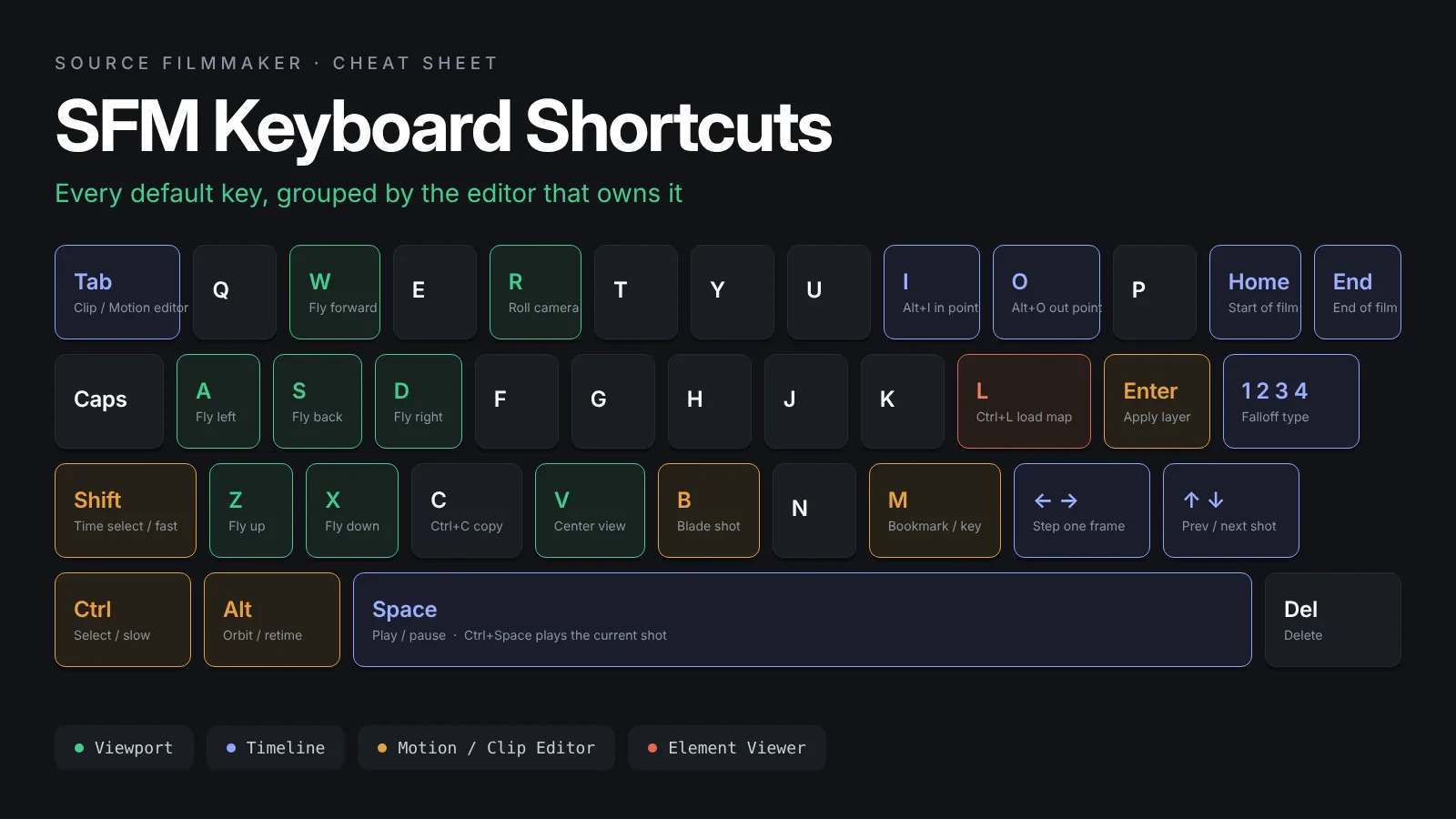
Quick Answer
SFM keyboard shortcuts hide most of Source Filmmaker’s speed behind modifier keys. Spacebar plays and pauses, and Tab flips between the Clip Editor and your last animation editor. Hold Ctrl in the viewport to reveal a model’s controls, Shift+drag on the Motion Editor timeline to make a time selection, and press V to center the viewport on your selection.
SFM keyboard shortcuts are the difference between fighting Source Filmmaker and working in it. The program hides most of its speed behind modifier keys: hold Ctrl in the viewport and controls appear, hold Shift on the timeline and you get a time selection, press Tab and you flip between the Clip Editor and your last animation editor. None of that is on a button. This cheat sheet collects the default shortcuts documented on the Valve Developer Community wiki, organizes them by editor, and ends with one master table you can print. For the model side of SFM, our SFM compile guide walks through QC files, studiomdl and Crowbar.
Everything below is the stock binding. If a key does nothing on your install, someone has rebound it, and the customization section shows you where to look.
The five shortcuts worth learning before any other:
Spacebar plays and pauses; Ctrl+Spacebar plays only the current shot and snaps time back to the playhead when it finishes.
Tab toggles between the Clip Editor and whichever of the Motion Editor or Graph Editor you used last.
Hold Ctrl in the viewport to reveal a model’s controls, then Ctrl+click to select one or Ctrl+drag to lasso several.
Shift+drag on the Motion Editor timeline makes a time selection; Ctrl+A selects all of time.
V centers the viewport on your selection, and Alt+V drags the manipulator to the middle of the screen.
How SFM Keyboard Shortcuts Are Organized
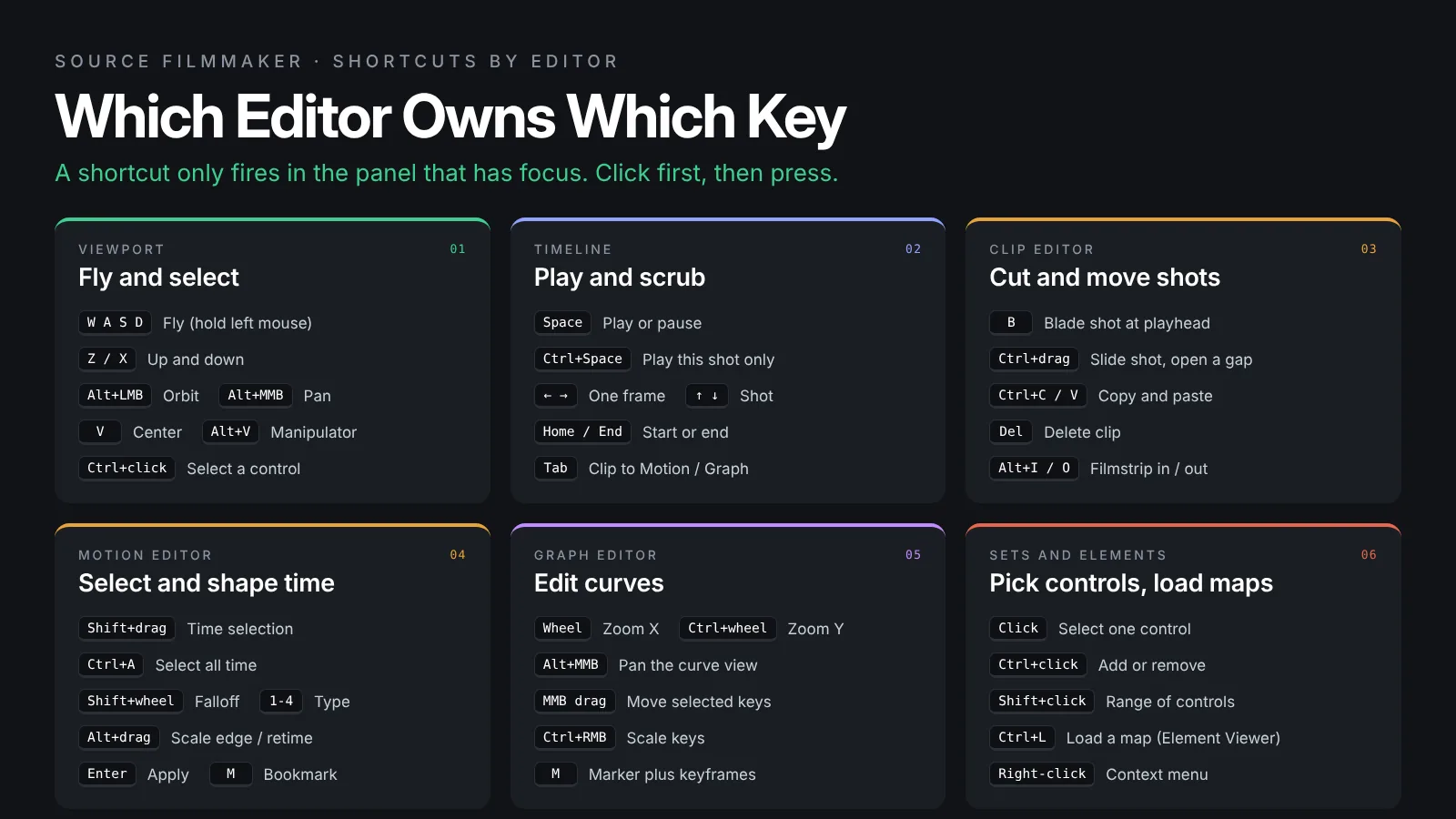
Source Filmmaker is several editors sharing one window, and each listens for its own keys. A shortcut only fires when the panel that owns it has focus, which is why Spacebar sometimes does nothing: your last click was in the Animation Set Editor, not the timeline.
Global shortcuts that work in every panel
The file and edit commands follow Windows convention. Undo is Ctrl+Z and redo is Ctrl+Shift+Z, not Ctrl+Y. Save is Ctrl+S, open is Ctrl+O, new is Ctrl+N, and cut, copy and paste use Ctrl+X, Ctrl+C and Ctrl+V. Del removes whatever is selected, and a right-click opens a context menu specific to the area under the pointer, which is where most of the commands without a hotkey live.
Focus follows your last click
Keep this habit from the start: click, then key. It removes the most common reason a shortcut appears to be broken, and it explains why V aims the work camera only after you have clicked inside the viewport.
Viewport Navigation Shortcuts
The viewport uses two separate control schemes, and the Valve wiki page on camera movement is clear that you cannot mix them in one movement.
WASD flying (hold the left mouse button)
Hold the left mouse button in the viewport and drag to look around. While the button is down, W and S move forward and back, A and D strafe, and Z and X move up and down. Hold R and drag to roll. The mouse wheel zooms. Shift speeds up and Ctrl slows down, which matters when a close-up keeps overshooting.
Alt orbit, pan and dolly (release the mouse first)
With no mouse button held, Alt plus a left drag orbits, Alt plus a middle drag pans, and Alt plus a right drag dollies in and out. Use this scheme when you are inspecting a pose rather than crossing a map.
Framing and selecting in the viewport
Press V to center the selected objects, or Alt+V to move the selected object’s manipulator to the center of the viewport, the quickest way to find a control that has wandered off screen. Hover with Ctrl held and the model’s selectable controls light up; Ctrl+click picks one and Ctrl+drag lassos a group. Ctrl+Shift+click toggles a control, Ctrl+Alt+click deselects, and Ctrl+Alt+Shift+click adds to the selection. Holding Shift while dragging a manipulator’s pivot handle snaps it to world surfaces, useful when planting feet on the floor. For framing rather than control, see our SFM camera tips guide.
Playback and Timeline Shortcuts
You press these hundreds of times a session, so drill them until they are automatic.
Play, pause and shot review
Spacebar toggles play and pause. Ctrl+Spacebar plays only the current shot and returns time to the playhead when it finishes, the fastest way to review a pose change without scrubbing back. Shift and a sideways mouse move previews time without moving the playhead; release Shift and you are back where you started.
Frame stepping and shot jumping
The Left and Right Arrow keys scrub one frame at a time. Up and Down Arrow jump to the previous and next shot. Home and End send the filmstrip to its beginning and end. Alt+I sets the filmstrip to the in point of the first shot and Alt+O to the out point of the last, which resets your view after zooming into a single moment.
Zooming and switching editors
The mouse wheel zooms the timeline around the playhead. Dragging the top of the playhead scrubs; dragging the bottom pans the filmstrip with it. Tab flips between the Clip Editor and whichever of the Motion Editor or Graph Editor you used last. If scrubbing stutters, the fix is usually in the viewport rather than the keys, and our SFM lag fix guide walks through it.
| Shortcut | Action | Where it works |
|---|---|---|
| Spacebar | Play or pause | Timeline, viewport play button |
| Ctrl+Spacebar | Play the current shot only, then return to the playhead | Timeline, Motion Editor |
| Shift + mouse move | Preview time without moving the playhead | Motion Editor |
| Left / Right Arrow | Step one frame | Timeline |
| Up / Down Arrow | Previous / next shot | Timeline |
| Home / End | Start / end of the filmstrip | Timeline |
| Alt+I / Alt+O | Filmstrip to first in point / last out point | Timeline |
| Mouse wheel | Zoom around the playhead | Timeline |
| Tab | Clip Editor to Motion or Graph Editor and back | Timeline |
Clip Editor Shortcuts
The Clip Editor cuts and shuffles shots, and most of its commands sit in the right-click menu, so it has only a few keys.
Blading and sliding shots
Park the playhead where you want the cut and press B to blade the shot into two independent copies. Hold Ctrl and drag a shot sideways to open a gap between it and its neighbor; right-click the black gap and choose Replace Gap with New Clip to fill it with an empty shot that copies the camera. Double-click a shot to open it; the up arrow at the top left of the timeline returns you to the sequence. Ctrl+C, Ctrl+V and Del all work on shots and clips. Sound clips follow the same rules, as our guide on how to add and sync sound in SFM shows.
Motion Editor Shortcuts
The Motion Editor works on regions of time rather than single keys, so nearly all of its shortcuts make or shape a time selection. If the editor is new to you, start with our Motion Editor and Graph Editor explainer.
Making a time selection
Shift+drag on the timeline selects a region of time. Keep Shift held through a drag sequence and SFM sets the first falloff, the hold, then the second falloff in turn. Ctrl+A selects all of time, for changes that should cover the whole shot. Drag the zig-zag handles at the far left and right to trim an infinite selection.
Shaping falloffs
With time selected, Shift plus the mouse wheel creates a falloff. The number keys 1, 2, 3 and 4 switch the falloff curve type. Shift plus a right drag, left or right, resets the falloff nearest the pointer. Alt+drag on an edge of the selection scales it, and Alt+drag inside the selection retimes it, moving the whole block earlier or later.
Committing a change
Edits sit on a floating modification layer until you commit them with Enter. Press M to drop a bookmark at the playhead; bookmarks can be dragged later, and the right-click Resample menu can average curves between them. The same keys drive SFM facial animation, where Ctrl+A and a slider drag apply an expression across a whole shot.
Graph Editor Shortcuts
The Graph Editor shows the same animation as curves with keyframes you move by hand. Its navigation keys differ from the viewport, so Alt+left drag does nothing here.
Navigating the curve view
The mouse wheel zooms horizontally and Ctrl plus the wheel zooms vertically. Alt plus a middle drag pans the view. Drag a box around a keyframe to select it, or around a tangent handle once the handles are showing.
Moving, scaling and typing keys
A middle drag moves the selected keys or a selected tangent handle. Ctrl plus a right drag scales the selected keys around the pointer. Press M to add a marker above the playhead and a keyframe on every control at that frame; dragging the marker later moves all of those keys together. For exact values, type into the X or Y number field, and SFM accepts expressions such as +=3 to offset the current value.
Animation Set Editor and Element Viewer Shortcuts
Both panels are mostly mouse driven, but the selection modifiers in the Animation Set Editor get constant use.
Selecting controls in the Animation Set Editor
Click selects a control, Ctrl+click adds or removes one, and Shift+click selects a run of adjacent controls. Right-click an animation set for copy, paste and delete, or to make it unselectable and hidden when it keeps catching your lasso. Selections made here are the ones the viewport and Motion Editor act on.
Working in the Element Viewer
The Element Viewer exposes the raw data of your session and has one shortcut worth remembering: Ctrl+L loads a different map when a shot references one that is not loaded. The up arrow at the top of the panel climbs from a shot to the sequence, and the browse button next to mapname opens the map chooser. If a map will not load at all, our Source Filmmaker install guide covers the mounting checks.
Camera, Lighting and Rendering Shortcuts
Cameras and lights are animation sets, so the viewport selection keys apply to them. A few inputs are specific to this work.
Work camera and scene camera
Hold Ctrl and click the active camera button in the lower right of the viewport to copy the scene camera’s view to the work camera. Click inside the work camera’s viewport and press V to aim it at the screen manipulator. In the scene camera’s viewport, Alt+V brings the manipulator to the center of the frame, the quickest way to recover a camera you have lost.
Lights
Drag a light into a viewport and rotate the mouse wheel to adjust its field of view, the spotlight cone. Alt+V centers a light’s manipulator so you can aim it without hunting for the handle. Right-click a light’s animation set to enable volumetrics. The SFM lighting guide builds three-point setups on these controls.
Rendering
Rendering is menu driven: File, then Export, then Movie opens the export dialog, and the wiki documents no default hotkey for it. You open it once per project and spend your time in the settings, so pick those with our best SFM render settings guide, then follow the image sequence to MP4 workflow for the final file or the poster tutorial for stills.
How to Customize SFM Hotkeys
Every default in this cheat sheet can be changed. Open the Help menu and choose Keyboard Shortcuts to see the full list for your install; the Valve wiki notes that this window is the authoritative source for your copy of SFM, since bindings can differ from one install to the next.
Editing a binding
Select the command and enter the new combination. The wiki warns that the editor does not capture a keystroke for you; you must spell out the shortcut’s name by hand, for example Ctrl+Shift+K, in the style the existing entries use. Match a neighboring entry’s format exactly and the binding takes.
Rules that keep custom hotkeys safe
- Avoid single letters that already do something in the viewport, such as W, A, S, D, Z, X, R, V, M and B, unless you are deliberately replacing them.
- Do not reuse Spacebar, Tab, Enter, the arrow keys, Home or End; they drive playback and the timeline.
- Prefer combinations with Ctrl+Shift or Ctrl+Alt for new commands, which are mostly free by default.
- Write your custom list down, so a reinstall that restores the defaults costs you minutes rather than an evening.
Shortcut Workflows for Common Tasks
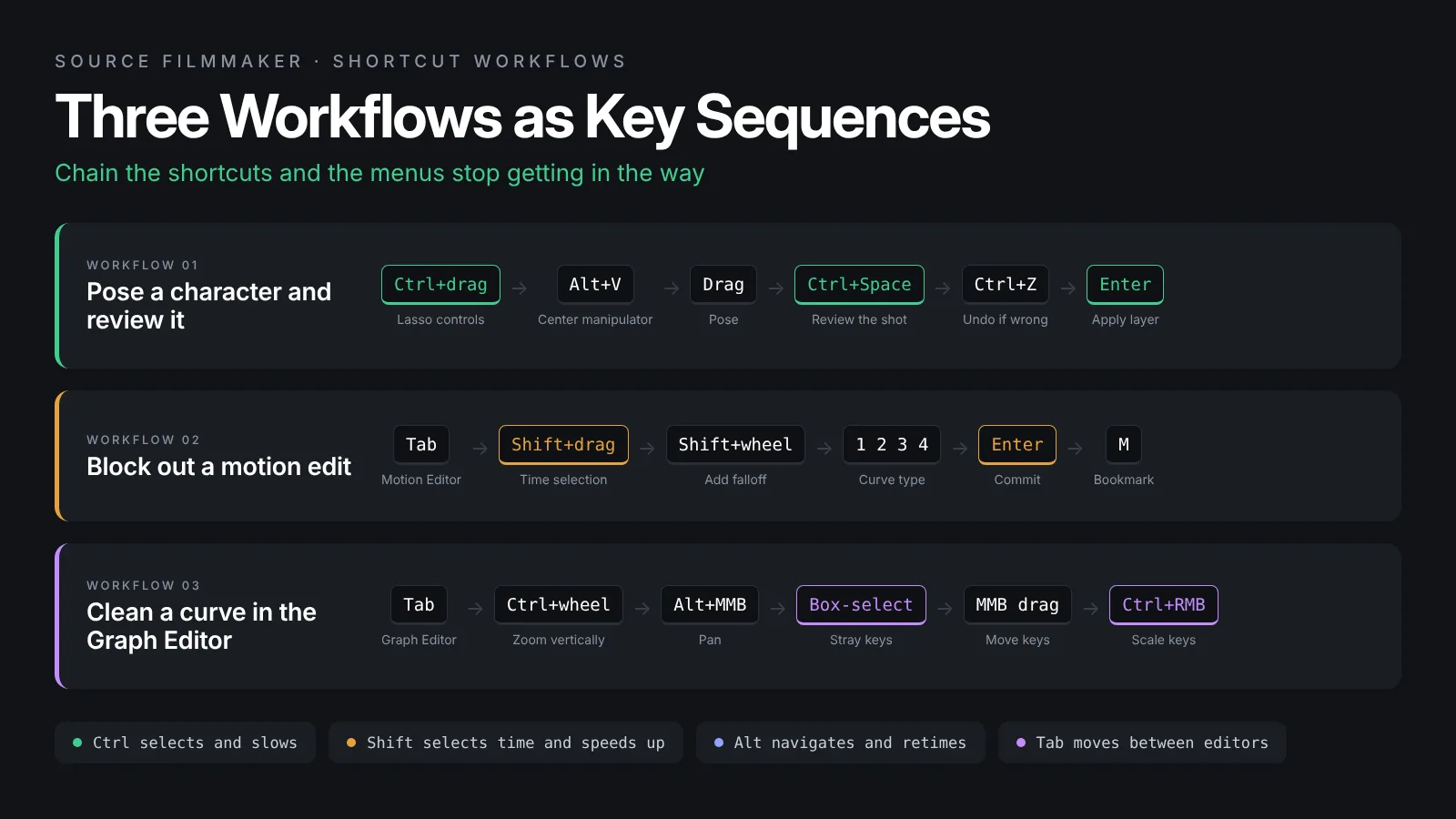
Shortcuts pay off when they chain. These three sequences cover most of a session.
Pose a character and review it
Hold Ctrl in the viewport and Ctrl+drag a lasso over the controls you want. Alt+V if the manipulator is off screen, pose, then Ctrl+Spacebar to review. Ctrl+Z if it is wrong, Enter when it is right.
Block out a motion edit
Tab into the Motion Editor, Shift+drag a time selection around the beat, Shift+wheel to add a falloff and press 1 to 4 until the curve type looks right. Adjust the slider or manipulator, Enter to commit, then M to leave a bookmark so you can find the edit later.
Clean a curve
Tab into the Graph Editor, wheel and Ctrl+wheel to zoom onto the curve, Alt+middle drag to pan, box-select the stray keys, then middle drag them into line or Ctrl+right drag to scale them. Press M on a frame you want to pin before scaling either side of it. This is also where you tidy mouth shapes after phoneme extraction.
SFM Keyboard Shortcuts Master Table
Every shortcut from this guide in one place, sorted by editor. Print it or keep it on a second screen until the keys are in your hands.
| Shortcut | Action | Editor |
|---|---|---|
| Ctrl+Z | Undo | Everywhere |
| Ctrl+Shift+Z | Redo | Everywhere |
| Ctrl+S | Save the session | Everywhere |
| Ctrl+O | Open a session | Everywhere |
| Ctrl+N | New session | Everywhere |
| Ctrl+X / Ctrl+C / Ctrl+V | Cut, copy, paste | Everywhere |
| Del | Delete the selection | Everywhere |
| Right-click | Open the context menu for that area | Everywhere |
| W / A / S / D | Fly forward, left, back, right (hold left mouse) | Viewport |
| Z / X | Fly up / down (hold left mouse) | Viewport |
| Left mouse drag | Look around with the work camera | Viewport |
| R + drag | Roll the camera | Viewport |
| Shift (while flying) | Speed up camera movement | Viewport |
| Ctrl (while flying) | Slow down camera movement | Viewport |
| Mouse wheel | Zoom in and out | Viewport |
| Alt + left drag | Orbit | Viewport |
| Alt + middle drag | Pan | Viewport |
| Alt + right drag | Dolly in and out | Viewport |
| V | Center the view on the selected objects | Viewport |
| Alt+V | Move the manipulator to the center of the viewport | Viewport |
| Ctrl (hover) | Show the selectable controls on a model | Viewport |
| Ctrl + click | Select a control | Viewport |
| Ctrl + drag | Lasso-select several controls | Viewport |
| Ctrl+Shift + click | Toggle a control in or out of the selection | Viewport |
| Ctrl+Alt + click | Deselect controls | Viewport |
| Ctrl+Alt+Shift + click | Add controls to the current selection | Viewport |
| Shift + drag pivot | Constrain the pivot to world surfaces | Viewport |
| Ctrl + click camera button | Copy the scene camera view to the work camera | Viewport |
| Spacebar | Play or pause | Timeline |
| Ctrl+Spacebar | Play only the current shot | Timeline |
| Left / Right Arrow | Step one frame back / forward | Timeline |
| Up / Down Arrow | Jump to the previous / next shot | Timeline |
| Home / End | Jump to the start / end of the filmstrip | Timeline |
| Alt+I / Alt+O | Set the filmstrip to the first in point / last out point | Timeline |
| Mouse wheel | Zoom the timeline around the playhead | Timeline |
| Tab | Toggle between the Clip Editor and the last Motion or Graph Editor | Timeline |
| B | Blade the shot at the playhead | Clip Editor |
| Ctrl + drag a shot | Slide a shot to open a gap | Clip Editor |
| Shift + drag | Make a time selection | Motion Editor |
| Ctrl+A | Select all of time | Motion Editor |
| Shift + mouse wheel | Create a falloff on the time selection | Motion Editor |
| 1 / 2 / 3 / 4 | Change the falloff curve type | Motion Editor |
| Shift + right drag | Reset the nearest falloff | Motion Editor |
| Alt + drag an edge | Scale the time selection | Motion Editor |
| Alt + drag inside | Retime (move) the time selection | Motion Editor |
| Shift + move mouse | Preview time without moving the playhead | Motion Editor |
| Enter | Apply the floating modification layer | Motion Editor |
| M | Add a bookmark at the playhead | Motion Editor |
| M | Add a marker and keyframes at the playhead | Graph Editor |
| Mouse wheel | Zoom horizontally | Graph Editor |
| Ctrl + mouse wheel | Zoom vertically | Graph Editor |
| Alt + middle drag | Pan the curve view | Graph Editor |
| Drag a box | Select keys or tangent handles | Graph Editor |
| Middle drag | Move selected keys or a tangent handle | Graph Editor |
| Ctrl + right drag | Scale selected keys around the pointer | Graph Editor |
| Click / Ctrl + click / Shift + click | Select one, several, or a range of controls | Animation Set Editor |
| Ctrl+L | Load a different map | Element Viewer |
| Mouse wheel (dragging a light) | Adjust the light’s field of view | Lighting |
Frequently Asked Questions
Where is the full list of SFM keyboard shortcuts?
Open the Help menu inside Source Filmmaker and choose Keyboard Shortcuts. That window lists every command and its current binding for your install, including any you have changed. The Valve Developer Community wiki points to the same window as the reference, which is why this cheat sheet only includes keys that the wiki documents.
Why does Spacebar not play my animation in SFM?
Shortcuts only fire in the panel that has focus. If your last click was in the Animation Set Editor or the Element Viewer, the timeline is not listening. Click once on the timeline or in the viewport and press Spacebar again. The same rule applies to Tab, the arrow keys and every other editor-specific shortcut.
How do I redo in Source Filmmaker?
Redo is Ctrl+Shift+Z, not Ctrl+Y. Undo is Ctrl+Z as usual. Both apply across the whole session, so a redo after undoing several steps replays them in order.
How do I switch between the Clip Editor and the Motion Editor quickly?
Press Tab with the timeline focused. It toggles between the Clip Editor and whichever of the Motion Editor or Graph Editor you used most recently. If Tab keeps sending you to the wrong editor, click the tab you want once at the bottom of the window and Tab will remember it from then on.
What does Ctrl+Spacebar do in SFM?
It plays only the current shot and then returns time to the playhead when playback finishes. It is the fastest way to review a pose or a motion edit without losing your place, which is why it appears in almost every workflow in this guide.
How do I select bones in the SFM viewport?
Hold Ctrl while hovering and the model’s selectable controls appear. Ctrl+click selects one, Ctrl+drag draws a lasso around several, Ctrl+Shift+click toggles a control, Ctrl+Alt+click deselects and Ctrl+Alt+Shift+click adds to the selection. This only works while the Motion Editor or Graph Editor is active, not in the Clip Editor.
Can I change SFM hotkeys to match Blender or Maya?
Yes, through Help and then Keyboard Shortcuts. You enter each new binding by typing its name rather than pressing the key, so copy the format of an existing entry. Avoid the single letters the viewport already uses for flying, and keep a written copy of your custom list in case a reinstall restores the defaults.
Final Thoughts
Learn the modifiers, not the list
Most SFM keyboard shortcuts come down to four modifiers with a job each: Ctrl selects and slows, Shift selects time and speeds up, Alt navigates and retimes, and Tab moves you between editors. Learn those roles and the individual keys stop feeling like a list. Pair them with the Motion Editor and Graph Editor fundamentals and the hours you spend in Source Filmmaker start going into the animation rather than the menus.