
Quick Answer
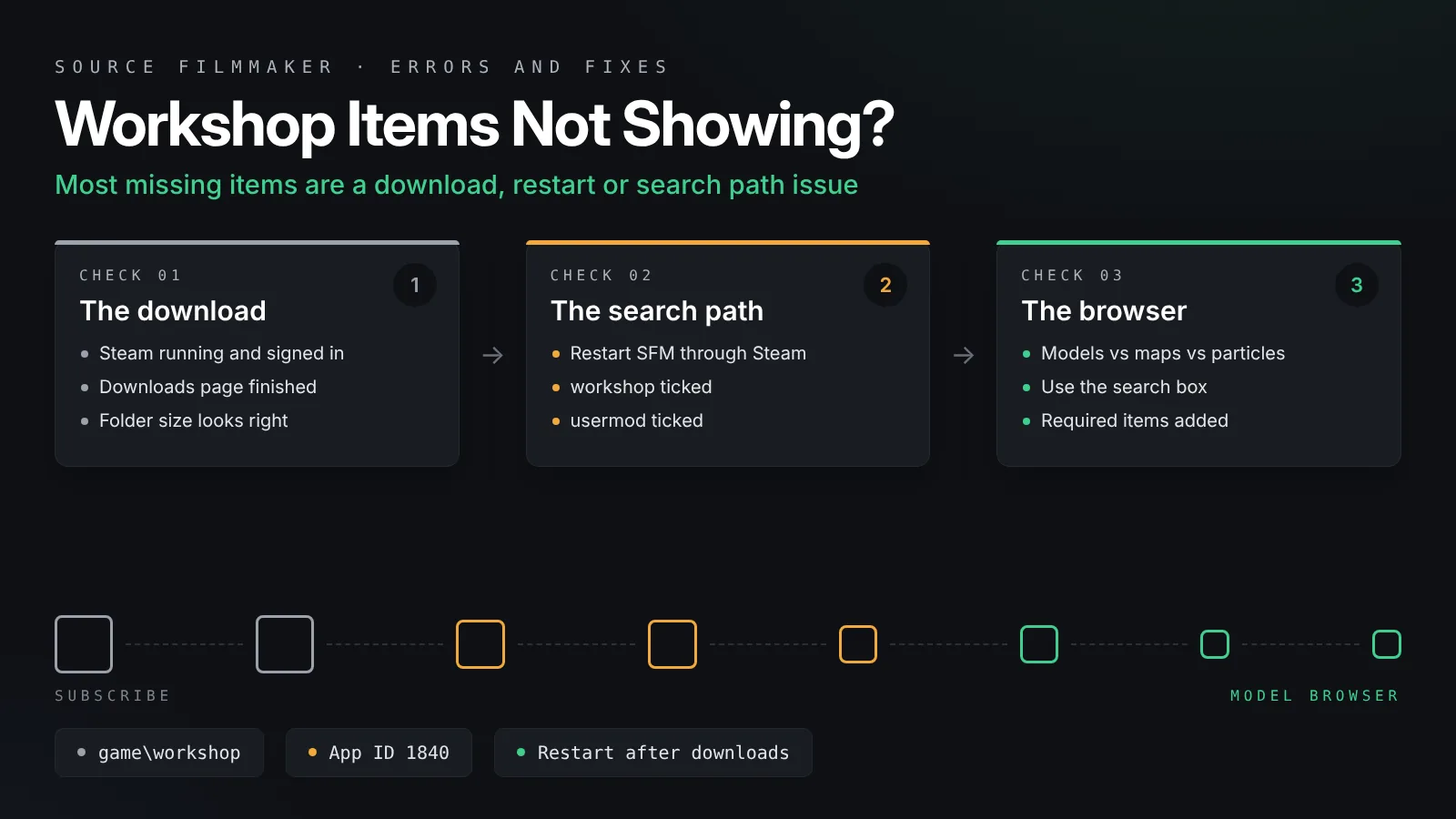
SFM workshop items not showing up are usually still downloading, waiting for SFM to restart, or sitting in a folder that is not on SFM's search paths. Let Steam finish the download, fully restart SFM, and tick the workshop folder in the SDK launcher. If that fails, check the right browser, verify files or install the item by hand.
You subscribe to a model on the Steam Workshop, open Source Filmmaker, and the model browser does not list it. It is one of the most common SFM problems, and it is rarely a sign that anything is broken. In almost every case, the item is still downloading, SFM has not refreshed, or the workshop folder is not part of SFM’s search paths. This guide covers 8 fixes for SFM workshop items not showing up, in the order that solves the problem fastest. If you are looking for character packs such as Fortnite SFM models, the same checks apply once you subscribe.
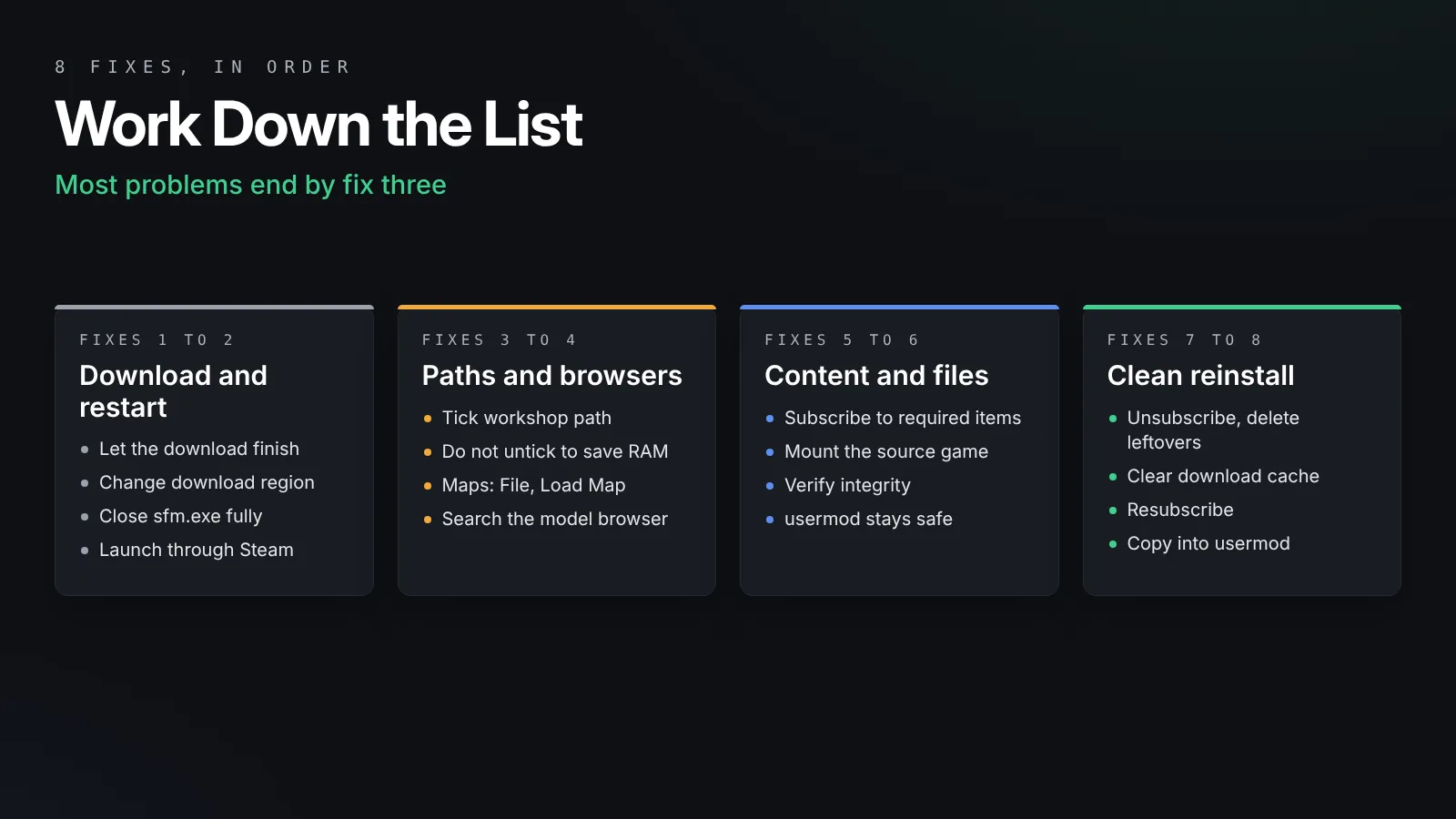
Work through them from the top. Most people are done by fix three.
The short version:
Make sure Steam has finished downloading the item, then fully close and reopen SFM from Steam.
Check that the workshop folder is ticked in the SDK launcher’s search path settings.
Search for the item in the right browser: models, maps and particles each live in different places.
If it still fails, add required content, verify SFM’s files, re-download cleanly or install the files by hand.
Why SFM Workshop Items Go Missing
It helps to know where the files go before you start fixing.
Where SFM keeps Workshop content
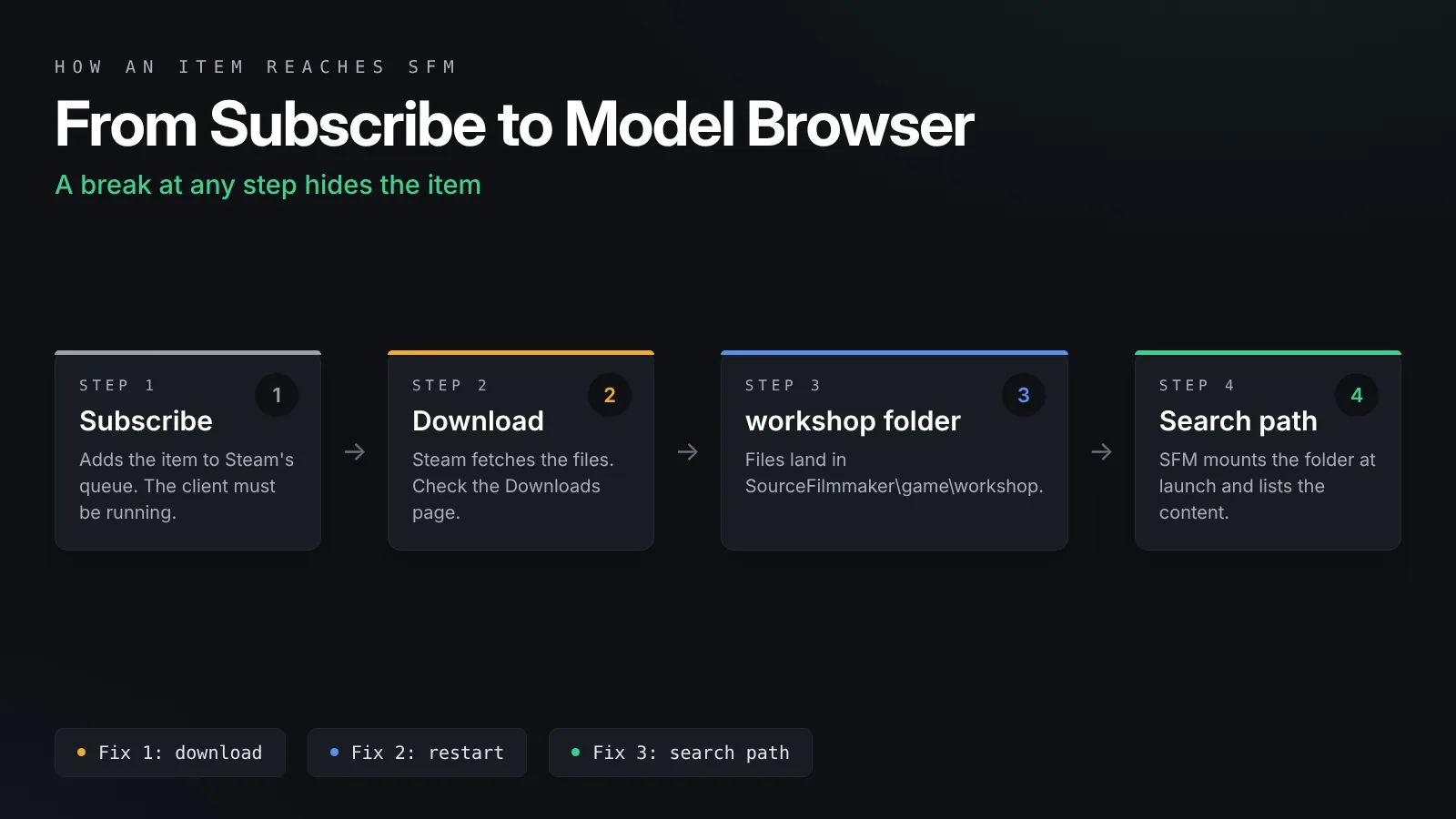
When you subscribe, Steam downloads the item and places its files where SFM can read them. For most SFM items, that is the SourceFilmmaker\game\workshop folder inside your Steam library. SFM’s app ID on Steam is 1840, so if the files are not in game\workshop, also look in steamapps\workshop\content\1840 in the same library.
How SFM finds models
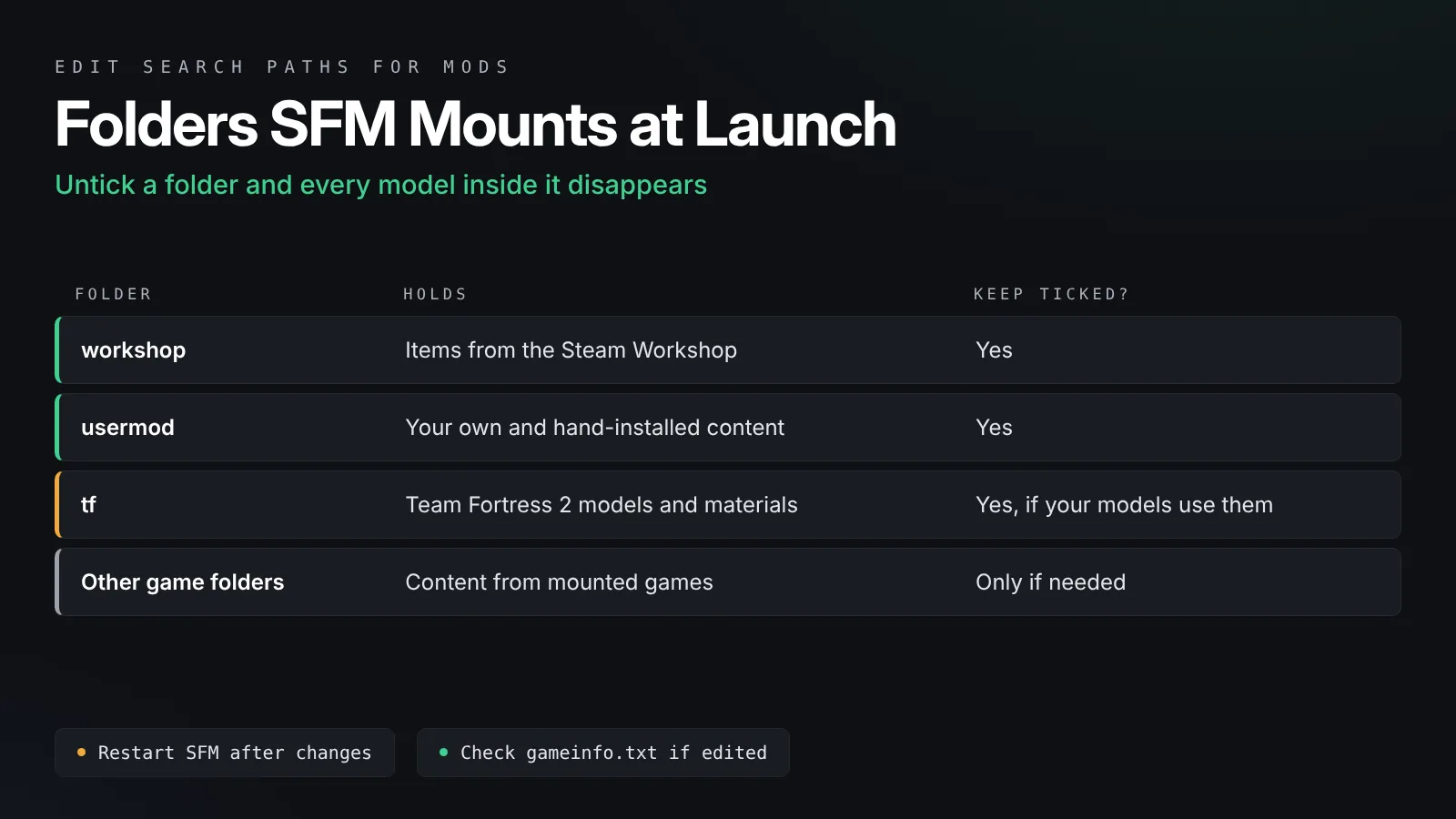
SFM only sees files inside folders listed in its search paths, such as usermod, workshop and tf. It builds its list of models when it starts. So a model that finishes downloading while SFM is open stays invisible until you restart it.
Symptom first, then fix
Before you begin, note exactly what you see. A model that is missing from the browser is a different problem from a model that loads as a red ERROR sign, and both differ from a model with purple and black textures. This guide fixes the first one. The other two have their own guides, linked below.
Fix 1: Let the Download Finish
This sounds obvious, but it is the most frequent cause.
Check the Steam downloads page
Subscribing on the website only adds the item to a queue. The Steam client must be running and signed in to actually download it. Open Steam, then the Downloads page, and look for Source Filmmaker. Large character packs can take a while, and Steam sometimes pauses Workshop downloads while a game update runs.
Check the item size
On the item’s Workshop page, note the file size. Then look in the workshop folder to see if a folder of roughly that size now exists. If the folder is missing or tiny, the download has not finished.
Change the download region if it is stuck
If the item never starts, open Steam Settings, then Downloads, and pick a different download region. Restart Steam and watch the Downloads page again.
Fix 2: Restart SFM Properly Through Steam
SFM reads its content when it launches, so a fresh start fixes a lot.
Close it completely
Save your session and close SFM. Open Task Manager and check that no sfm.exe process is still running in the background. If one is, end it.
Launch from Steam
Start SFM from your Steam library rather than from a desktop shortcut that points straight at sfm.exe. Launching through Steam makes sure the Workshop integration and your account are both active. If you are setting SFM up for the first time, our guide to installing Source Filmmaker on Windows covers the correct launch steps.
Fix 3: Enable the Workshop Search Path
If the files exist but SFM ignores them, the search path is the usual culprit.
Open the SDK launcher
When you start SFM from Steam, the SDK launcher window can open first. It holds a tool for editing the mod search paths, often named Edit Search Paths for Mods. Open it to see every content folder SFM can mount.
Tick workshop and the folders you use
Make sure workshop is ticked. Also tick usermod, and any game folders your models depend on, such as tf. Click OK, then launch SFM again. If you edited gameinfo.txt by hand at some point, check that the workshop line was not removed.
Do not untick folders to save memory
Some guides suggest unticking folders to speed SFM up. That works, but it also hides every model in those folders. If items vanished after a cleanup, this is probably why.
Fix 4: Look in the Right Browser and Folder
Many “missing” items are actually loaded, just not where you are looking.
Models, maps and particles live apart
Character and prop models appear in the model browser when you add an animation set. Maps do not. You load them with File, then Load Map, and they appear in the map list. Particle systems appear in the particle browser, and sessions open with File, then Open. Check the item’s Workshop page to see what type it is.
Use the search box
The model browser shows the folder structure the creator chose. A character might sit under a folder such as models\workshop\ or under the creator’s own folder name. Type part of the model’s name in the search field instead of clicking through folders.
Check the file inside the folder
Open the downloaded folder in Windows. A model is ready to use when you see .mdl files under a models folder, plus matching .vtx, .vvd and usually .phy files. If you only see a .zip or source files, the creator uploaded something that needs extra steps. Our guide to importing SFM models from the Steam Workshop shows what a correct folder looks like.
Fix 5: Add Required Items and Game Content
Some items depend on other items or on game files you do not have.
Check the Required Items list
Many Workshop pages list required items on the right side of the page. A hat pack might need the base character, or a map might need a texture pack. Subscribe to every required item, let them all download and restart SFM.
Mount the game the item came from
SFM ships with Team Fortress 2 content. Models that reuse materials from other Source games can load with missing parts if those materials are not available. The item description usually says which game it needs.
Missing textures or ERROR signs
If the model now appears but shows a purple checkerboard, read our SFM missing textures fix. If it loads as a red ERROR sign, our SFM red ERROR model fix covers the causes.
Fix 6: Verify SFM’s Files
Damaged program files can stop content from loading.
Run Verify integrity
In your Steam library, right-click Source Filmmaker, choose Properties, then Installed Files, and click Verify integrity of tool files. Steam compares your install with the official one and replaces anything damaged or missing. Valve explains the process on its Steam Support page about verifying files.
Your own files stay safe
Verifying does not delete your usermod content or sessions. Still, back up your usermod folder from time to time, because it holds every custom model and session you have made.
Fix 7: Re-Download the Item Cleanly
A half-finished or corrupt download can block an item for good.
Unsubscribe and delete the leftovers
Unsubscribe from the item on its Workshop page. Close SFM, then delete any folder the item left in the workshop folder. Only delete folders you are sure belong to that item.
Clear the Steam download cache
Open Steam Settings, then Downloads, and click Clear Download Cache. Steam will ask you to sign in again. This removes stuck download data without touching your installed content.
Subscribe again
Subscribe once more, watch the Downloads page until it completes, then start SFM through Steam. In most cases the item appears straight away.
Fix 8: Install the Files by Hand
When the Workshop route keeps failing, you can still use the content.
Copy the files into usermod
If the item downloaded but SFM still will not list it, copy its models, materials and other folders into SourceFilmmaker\game\usermod, keeping the same folder structure. Usermod is always mounted, so this often works when the workshop path is misbehaving.
Use the creator’s own download
Some creators also share their models outside Steam. If you download a pack that way, check the folder structure before copying, so models and materials end up in usermod\models and usermod\materials.
Keep your library tidy
Hand-installed files do not update automatically. Note where each pack came from, so you can replace it if the creator releases a fix. If you are building scenes with maps too, our list of the best free SFM maps shows how map files are laid out.
Quick Reference Table
Use this table to jump straight to the most likely fix.
| What you see | Most likely cause | Go to |
|---|---|---|
| Item not in Steam’s download list | Steam client not running when you subscribed | Fix 1 |
| Files exist but SFM does not list them | SFM was open during the download | Fix 2 |
| Nothing from the Workshop shows at all | workshop search path is unticked | Fix 3 |
| Map or effect missing from the model browser | Wrong browser for the item type | Fix 4 |
| Model appears with parts missing | Required item or game content missing | Fix 5 |
| Many items fail at once | Damaged SFM install | Fix 6 |
| One item never works | Corrupt download | Fix 7 |
| Workshop keeps failing | Search path or Steam issue | Fix 8 |
Frequently Asked Questions
Where does SFM save Workshop downloads?
Most SFM Workshop items end up in the SourceFilmmaker\game\workshop folder inside your Steam library. If you cannot find them there, check steamapps\workshop\content\1840 in the same library, since 1840 is SFM’s Steam app ID.
Do I need to restart SFM after subscribing?
Yes. SFM builds its list of available content when it starts. Anything that finishes downloading while SFM is open will not show until you close it fully and launch it again.
Why can I not find a Workshop map in the model browser?
Maps are not models. Load them with File, then Load Map, and pick them from the map list. Particle systems and sessions also have their own browsers and menus.
Will verifying SFM’s files delete my custom models?
No. Verifying only checks and repairs SFM’s official files. It does not remove content in usermod or your saved sessions. Keeping a backup of usermod is still a good habit.
Can I use Workshop models without being online?
Once an item has fully downloaded, its files stay on your drive and SFM can load them. You still need Steam online to subscribe to new items and to download updates.
Why does the model show up but look like a red ERROR sign?
That means SFM found a reference to the model but could not load the model file itself. It is a different problem from a missing item, and it usually comes from wrong paths or files in the wrong folder.
Final Thoughts
Download, restart, then check the paths
When SFM workshop items are not showing up, start simple. Confirm the download finished, restart SFM through Steam, and make sure the workshop search path is ticked. If the item still hides, check its type, add required content, verify SFM’s files and re-download it cleanly. As a last resort, copy the files into usermod. Follow that order and missing items rarely stay missing for long.