

Quick Answer
SFM crashing on startup is usually caused by an outdated graphics driver, SFM running on the wrong GPU, overlay software, bad launch options, or broken custom content in the usermod folder. Restart Steam, verify the tool files, update your driver, clear launch options, then move custom content out of usermod to test a clean launch.
Few things are more frustrating than double-clicking Source Filmmaker and watching it vanish before the main window appears. Sometimes you see a brief splash screen, sometimes an engine error box, and sometimes nothing at all. The good news is that startup crashes almost always come from a short list of causes, and you can work through them in a logical order without losing your projects.
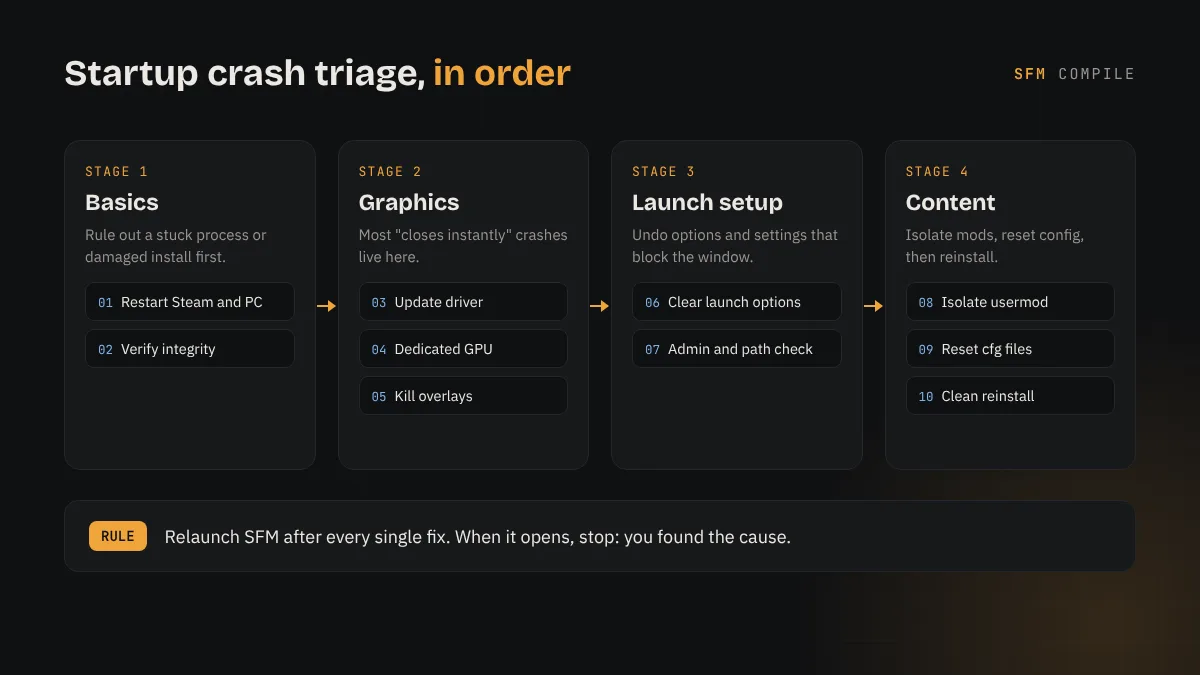
This guide walks through 10 fixes, starting with the quickest and safest checks and ending with a clean reinstall. Relaunch SFM after each fix. The moment it opens normally, you have found the cause and can stop there.
Rule out a stuck process and damaged files.
Restart Steam and your PC, then verify the SFM files in Steam.
Fix the graphics side.
Update the driver, force the dedicated GPU, and turn off overlays.
Reset how SFM launches.
Clear launch options and check permissions and the install path.
Isolate content and config.
Test without custom mods, reset config files, and reinstall only as a last resort.
Why SFM Crashes on Startup
Source Filmmaker is built on the Source engine and loads a lot during startup: the renderer, the tool interface, every search path listed in its game configuration, and any content you have added. A failure at any of these points can close the program before you reach the session dialog.
The Most Common Causes
- An outdated or corrupted graphics driver that cannot create the DirectX device SFM needs.
- Laptops launching SFM on the integrated GPU instead of the dedicated card.
- Overlay and capture tools hooking into the renderer as it starts.
- Custom launch options copied from a guide that do not suit your hardware.
- Broken models, materials or scripts added to the usermod folder.
- Missing or damaged program files after an interrupted update.
Match the Symptom to the Fix
What you see right before the crash is a useful clue. Use this table to jump to the most likely fix, or simply work through the list in order if you are not sure.
| What happens | Likely cause | Start with |
|---|---|---|
| Nothing happens after clicking Launch | Stuck process or damaged files | Fix 1 and Fix 2 |
| Window flashes, then closes | Driver, GPU selection or overlay | Fix 3, Fix 4 and Fix 5 |
| Error about a missing DLL | Missing DirectX or Visual C++ runtime | Fix 3 |
| Crash started after editing launch options | Unsupported launch parameter | Fix 6 |
| Crash started after adding mods | Broken custom content | Fix 8 |
| Crash persists after everything else | Corrupt config or install | Fix 9 and Fix 10 |
Basic Fixes to Try First
These two fixes take only a few minutes and solve a surprising number of launch problems, so do them before touching drivers or files.
Fix 1: Restart Steam and Your PC
If a previous SFM session crashed, a leftover sfm.exe process can stay in memory and block a new launch. Open Task Manager with Ctrl + Shift + Esc, look for any SFM or Source Filmmaker entry, and end it. Then exit Steam fully from the system tray, restart Windows, and launch SFM again from your Steam library. A full restart also clears pending Windows and driver updates that sometimes interfere with the first launch after an update.
Fix 2: Verify the SFM Files in Steam
An interrupted download or a disk error can leave core files missing or damaged. In Steam, right-click Source Filmmaker, open Properties, choose Installed Files, and select the option to verify the integrity of the files. Steam compares your install with the official version and downloads anything that does not match. This check does not delete your custom content in usermod, although it can restore stock files you edited, so back up any official files you changed by hand first.
Graphics Driver and GPU Fixes
When SFM opens a window and immediately closes it, the renderer is the usual suspect. SFM is a DirectX 9 era program, and modern systems need the right driver, the right GPU and a clean rendering path to start it reliably.
Fix 3: Update Your Graphics Driver and Runtimes
Download the latest driver directly from NVIDIA, AMD or Intel rather than relying on Windows Update. If a crash began right after a driver update, try the clean install option in the vendor installer, or roll back to the previous version to see whether the new release is the problem.
If you see an error naming a missing file such as a d3dx9 or msvcp DLL, the issue is a runtime rather than the driver. Installing the legacy DirectX End-User Runtime and the Microsoft Visual C++ redistributables from Microsoft usually restores those files. Steam normally installs them on first launch, but that step can fail silently.
Fix 4: Force SFM to Use the Dedicated GPU
Many laptops have both integrated graphics and a dedicated card, and Windows sometimes starts SFM on the weaker chip. In Windows 10 or 11, open Settings, go to System, then Display, then Graphics. Add sfm.exe from SourceFilmmaker\game and set it to High performance. You can also set the preferred processor in the NVIDIA or AMD control panel. If your hardware is near the minimum, our guide to the best PC specs for SFM explains what the program realistically needs.
Fix 5: Disable Overlays and Background Tools
Overlays inject code into the rendering pipeline as a program starts, and older Source tools do not always tolerate it. Temporarily turn off the Steam overlay for SFM, the Discord overlay, GPU vendor overlays, frame rate monitors such as RivaTuner, and screen recorders. Some antivirus tools also quarantine or block files during launch. If SFM opens with these disabled, re-enable them one at a time to find the conflict, and add the SFM folder as an exclusion in your security software if needed.
Launch Option and Windows Fixes
If the graphics side looks healthy, check how SFM is being launched. Small settings here can stop the program before its interface loads.
Fix 6: Clear Custom Launch Options
Launch options are a common cause of crashes that start right after following a tutorial. Right-click Source Filmmaker in Steam, open Properties, and look at the Launch Options field on the General tab. Copy whatever is there into a text file, clear the field, and launch SFM. If it opens, add your options back one at a time. Very high render resolution values are a frequent culprit on cards with limited video memory. The Valve Developer Community list of SFM command-line options explains what each supported parameter does, which helps you spot options that do not belong.
Fix 7: Check Permissions and the Install Path
SFM writes files into its own folder while it runs. If Steam is installed in a protected location or a folder synced by cloud storage, those writes can fail. Try running Steam as administrator once to see if the behavior changes. Also check that the full path to SFM does not include unusual characters, since older Source tools can struggle with non-English characters in folder names. If needed, create a new Steam library folder on a simple path such as D:\SteamLibrary and move SFM there through Steam. Our Source Filmmaker install guide for Windows covers a clean setup in detail.
Mod, Config and Reinstall Fixes
When SFM crashes only on your machine and the basics check out, the cause is often something you added. These fixes isolate custom content and settings without deleting your work.
Fix 8: Test SFM Without Custom Content
Custom content lives in SourceFilmmaker\game\usermod and in any extra mod folders you added to the search paths. A broken script or a malformed file in these folders can stop the tool during loading. Create a backup folder outside usermod, then move the custom models, materials and scripts folders into it. Leave stock folders where they are. Launch SFM. If it opens, move half of the content back and test again, repeating until you find the item that causes the crash.
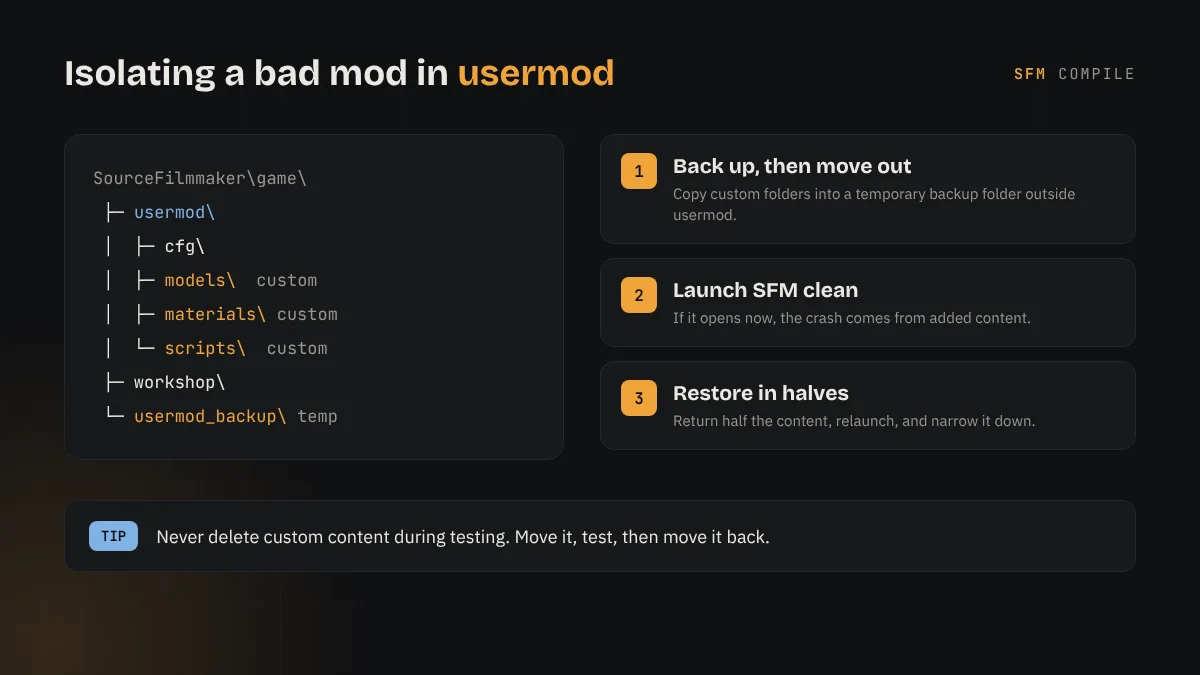
If you also edited gameinfo.txt to add search paths, restore your backup of that file or remove the extra lines while testing. A search path pointing to a folder that no longer exists is easy to miss. Once SFM launches, broken models usually show up as load errors rather than crashes, and our fix for the red ERROR model in SFM covers that next step.
Fix 9: Reset SFM Config Files
Saved settings can occasionally become corrupt, especially after a crash during exit. Open usermod\cfg, then move config.cfg and any custom config files you or a mod added into your backup folder. SFM rebuilds default settings on the next launch. If this fixes the crash, you can copy specific settings back by hand instead of restoring the whole file.
Fix 10: Do a Clean Reinstall
Reinstall only after the other fixes fail. First, back up your sessions from usermod\elements\sessions, plus any custom content and edited files you want to keep. Uninstall SFM in Steam, then delete the leftover SourceFilmmaker folder in steamapps\common so no old files remain. Reinstall, launch once with no custom content to confirm a clean start, and then bring your sessions and content back in stages.
How to Stop Startup Crashes Coming Back
Once SFM opens again, a few habits make repeat crashes much less likely and much easier to diagnose.
Keep Custom Content Organized
Add new mods in small batches and launch SFM after each batch. Keeping large collections in separate mod folders, rather than dumping everything into usermod, lets you switch content on and off by editing search paths. If Workshop downloads stop appearing rather than crashing, see our guide on SFM Workshop items not showing up.
Back Up Before Big Changes
Before a driver update, a large mod install or an edit to gameinfo.txt, copy your sessions folder and the files you plan to change. A five minute backup turns a stressful crash into a quick rollback.
Know When to Ask for Help
If SFM still crashes on a clean reinstall with no custom content, the issue is likely hardware, the operating system, or a driver conflict. Note your Windows version, GPU model, driver version and any exact error text, then post in the Source Filmmaker Steam discussions. Specific details get far better answers than a general report that the program does not open.
Frequently Asked Questions
Why does SFM close immediately after I launch it?
An instant close usually points to a rendering problem: an outdated graphics driver, SFM starting on integrated graphics, or an overlay hooking into the renderer. Update the driver, force the dedicated GPU, and disable overlays before trying anything else.
Will verifying the files delete my SFM projects?
No. Verifying only checks the official files that Steam installed and replaces any that are missing or damaged. Your sessions and custom content are not removed, although stock files you edited by hand may be restored to their original versions.
Can a bad mod really stop SFM from starting?
Yes. Broken scripts, malformed files or search paths pointing to missing folders can stop SFM during loading. Moving custom content out of usermod and testing a clean launch is the fastest way to confirm it.
Does SFM work on Windows 11?
SFM runs on Windows 10 and Windows 11 for most users. It is a Windows only program and needs a 64-bit system with working DirectX 9 support, which current GPU drivers still provide.
Should I run SFM as administrator?
It is fine as a one time test to rule out permission problems. If it fixes the crash, a better long term fix is moving your Steam library to a simple, unprotected folder rather than always running with elevated rights.
Is reinstalling SFM the best first step?
No. Reinstalling takes time and does not fix driver, overlay or launch option problems, which are the most common causes. Save it for last, and always back up your sessions folder before uninstalling.
Final Thoughts
Work Through the Fixes in Order
SFM crashing on startup feels serious, but the cause is rarely mysterious. Start with a restart and a file check, move on to drivers, GPU selection and overlays, then reset launch options, custom content and config files. Relaunch after every change so you know exactly which fix worked, and keep a backup of your sessions so even a full reinstall costs you nothing but time.